

Enabling Phone Simulator for Local Files

Chrome blocks extensions from accessing local files by default. Enable the 'Allow access to file URLs' permission for the Phone Simulator to work with them.
Why Local Files Need Special Permission
When you open HTML files directly from your computer (file:// URLs), Chrome restricts extension access by default for security reasons. To use Phone Simulator - Mobile Emulator Tool with locally stored files, you'll need to grant explicit permission.
Quick Check: Are You Using a Local File?
Local file URLs start with file:// instead of http:// or https://.
Example: file:///C:/Users/YourName/Documents/project/index.html

If you see this format in your address bar, follow the steps below.
Enabling Local File Access: 3-Step Process
Step 1: Navigate to Extension Settings
Open Chrome's extension management page using either method:
Option A: Type chrome://extensions directly into your address bar and press Enter

Option B: Click the puzzle piece icon in Chrome's toolbar → Select "Manage Extensions" from the dropdown
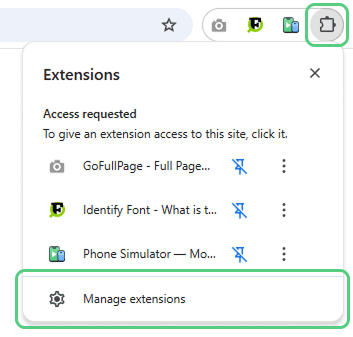
Step 2: Find and Configure Phone Simulator
Once you're on the extensions page:
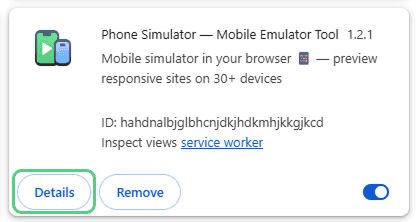
- Scroll through your installed extensions until you find Phone Simulator - Mobile Emulator Tool
- Click the "Details" button for this extension
- Look for the toggle switch labeled "Allow access to file URLs"
- Enable this toggle by clicking it
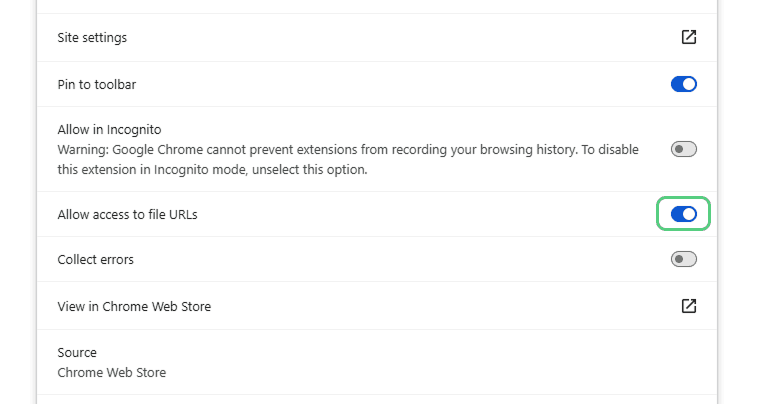
Troubleshooting tip: If the toggle is already enabled but the simulator isn't working, try switching it off and back on again to refresh the permission.
Step 3: Test Your Local File
Now you're ready to test:
- Open your local HTML file in Chrome (drag and drop it into the browser or use File → Open)
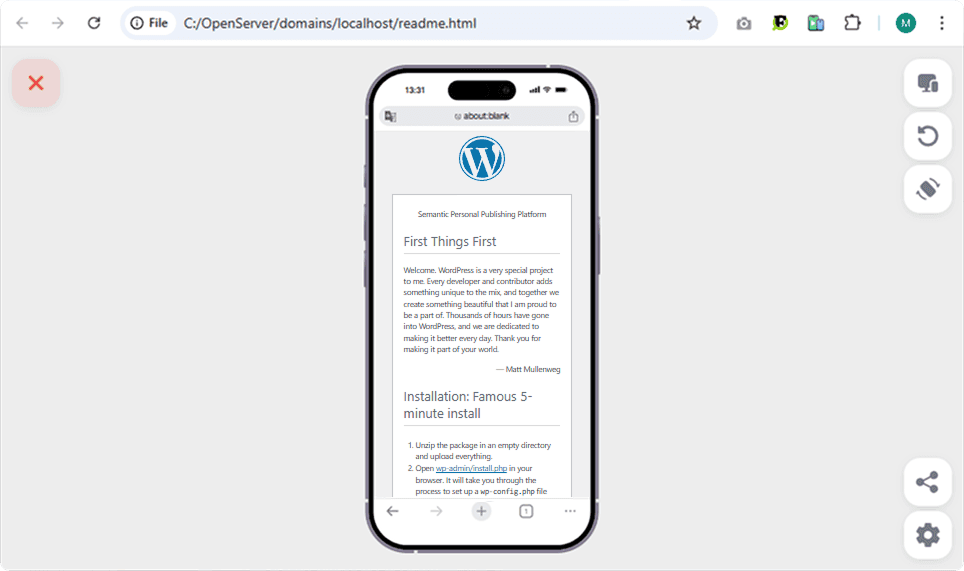
- Activate the Phone Simulator extension
- Your mobile emulator should now display correctly
Still Having Issues?
If you've followed these steps and the simulator still isn't working with local files, please reach out to our support team. We're here to help troubleshoot any problems you encounter.
Note: This permission only needs to be enabled once. Phone Simulator will remember this setting for all future local files.
Frequently Asked Questions
Why doesn’t Phone Simulator work on local HTML files by default?
Chrome blocks extensions from accessing file:// URLs for security reasons. Phone Simulator requires explicit permission to run on locally opened HTML files.
How do I enable Phone Simulator for local files in Chrome?
Open chrome://extensions, find Phone Simulator, click Details, and enable Allow access to file URLs. This grants the extension permission to work with local files.
What is a local file URL in Chrome?
A local file URL starts with file:// instead of http:// or https://. It usually points to an HTML file stored directly on your computer.
Do I need to enable file access every time I use Phone Simulator?
No, the permission only needs to be enabled once. Chrome remembers the setting for all future local files.
Can Phone Simulator be used for local frontend development?
Yes, once file access is enabled, Phone Simulator works with local HTML files for testing responsive layouts and mobile rendering before deployment.
Is enabling file URL access safe?
Yes, the permission applies only to the specific extension and is required for local development workflows. Chrome isolates this access to protect your system.
Install Phone Simulator Today
Join thousands of developers and designers who test their sites on real devices for free.
- Free
- 30,000+ users
Read More About Mobile Testing & UX

How to Run an Android Emulator in Chrome
A lightweight Android emulator in Chrome previews your site on real Android device sizes — no Android Studio needed. Here's how to run one and what to check.
Read more

How to View Mobile Version of Website on Chrome
See how to view the mobile version of any website directly in Chrome — using built-in DevTools and a free device-simulator extension that shows a realistic phone frame.
Read more

Why Your Website Should Load in Under 2 Seconds on Mobile - Backed by 2025–2026 Data
This guide explains why 2 seconds became the standard, what current data tells us about mobile performance, and how to hit that target consistently across devices and networks.
Read more