

Mobile Navigation Patterns: What Works in 2026
This guide breaks down the navigation patterns that work in 2026, when to use each one, and how to implement them effectively across different devices.
📋 Table of Contents
- Why Mobile Navigation Is So Critical
- The 6 Navigation Patterns That Actually Work
- Choosing the Right Pattern for Your Site
- Testing Navigation Across Devices
- Design Best Practices That Apply to All Patterns
- Common Mobile Navigation Mistakes
- Performance Matters for Navigation
- Real-World Examples and Stats
- Testing Your Navigation in Real Conditions
- The Bottom Line
Mobile navigation makes or breaks user experience. Get it wrong and users can't find what they need - they leave. Get it right and navigation becomes invisible, letting content and conversions take center stage.
But mobile screens are small, thumbs are imprecise, and user patience is nonexistent. Desktop navigation patterns don't translate to mobile. You need patterns specifically designed for how people actually use phones - one-handed, distracted, and expecting instant access.
Why Mobile Navigation Is So Critical
Navigation accounts for 30-40% of mobile usability problems. Users who can't find what they're looking for within 10-15 seconds typically abandon the site entirely.
Mobile-specific challenges:
- Limited screen space: Every pixel dedicated to navigation is a pixel not used for content
- Touch targets: Fingers are less precise than mouse cursors - buttons need 44×44px minimum
- Thumb zones: 60% of mobile users browse one-handed, making bottom-screen elements easier to reach
- Context switching: Mobile users multitask constantly and need navigation that doesn't require remembering complex hierarchies
The best mobile navigation is nearly invisible until needed, easily accessible when required, and never gets in the way of primary tasks.
The 6 Navigation Patterns That Actually Work
1. Bottom Tab Bar (The Mobile Standard)
Bottom tab bars dominate mobile apps and increasingly appear on mobile web. They place 4-5 primary navigation items at the bottom of the screen - right in the thumb zone.
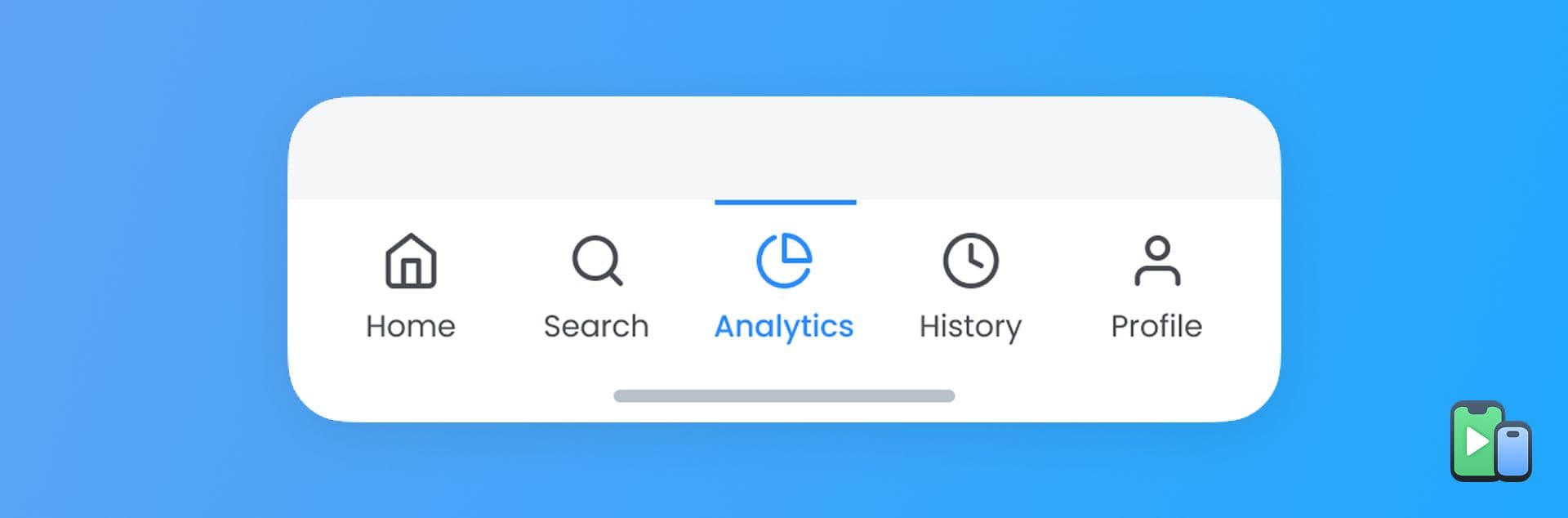
When to use:
- Apps or sites with 3-5 primary sections
- Content-heavy experiences (news, social, e-commerce)
- When users frequently switch between sections
Implementation considerations:
.bottom-nav {
    display: flex;
    justify-content: space-around;
    padding: 8px 0;
    position: fixed;
    bottom: 0;
    width: 100%;
    background-color: #ffffff;
    border-top: 1px solid #e5e5e5;
    z-index: 100;
}

.nav-item {
    display: flex;
    flex-direction: column;
    align-items: center;
    min-width: 44px;
    min-height: 44px;
}
iOS Safari caveat: Add padding for safe area on devices with home indicators:
.bottom-nav {
    padding-bottom: env(safe-area-inset-bottom);
}
Pros: Highly accessible, fast switching, familiar pattern
Cons: Takes verical space, limited to 5 items maximum
2. Hamburger Menu (Still Relevant)
The three-line hamburger icon remains controversial but effective when implemented correctly. It hides complex navigation hierarchies behind a single tap.

When to use:
- Sites with 6+ navigation items
- Complex information architectures
- Secondary/tertiary navigation options
- Content-first experiences where navigation shouldn't dominate
Best practices:
- Place in top-left or top-right (consistent with platform conventions)
- Animate smoothly to avoid jarring transitions
- Close menu when users tap outside or select item
- Show first-level items without requiring scrolling
Pros: Saves space, handles complex hierarchies
Cons: Lower discoverability, requires extra tap, "out of sight, out of mind"
3. Priority+ Navigation
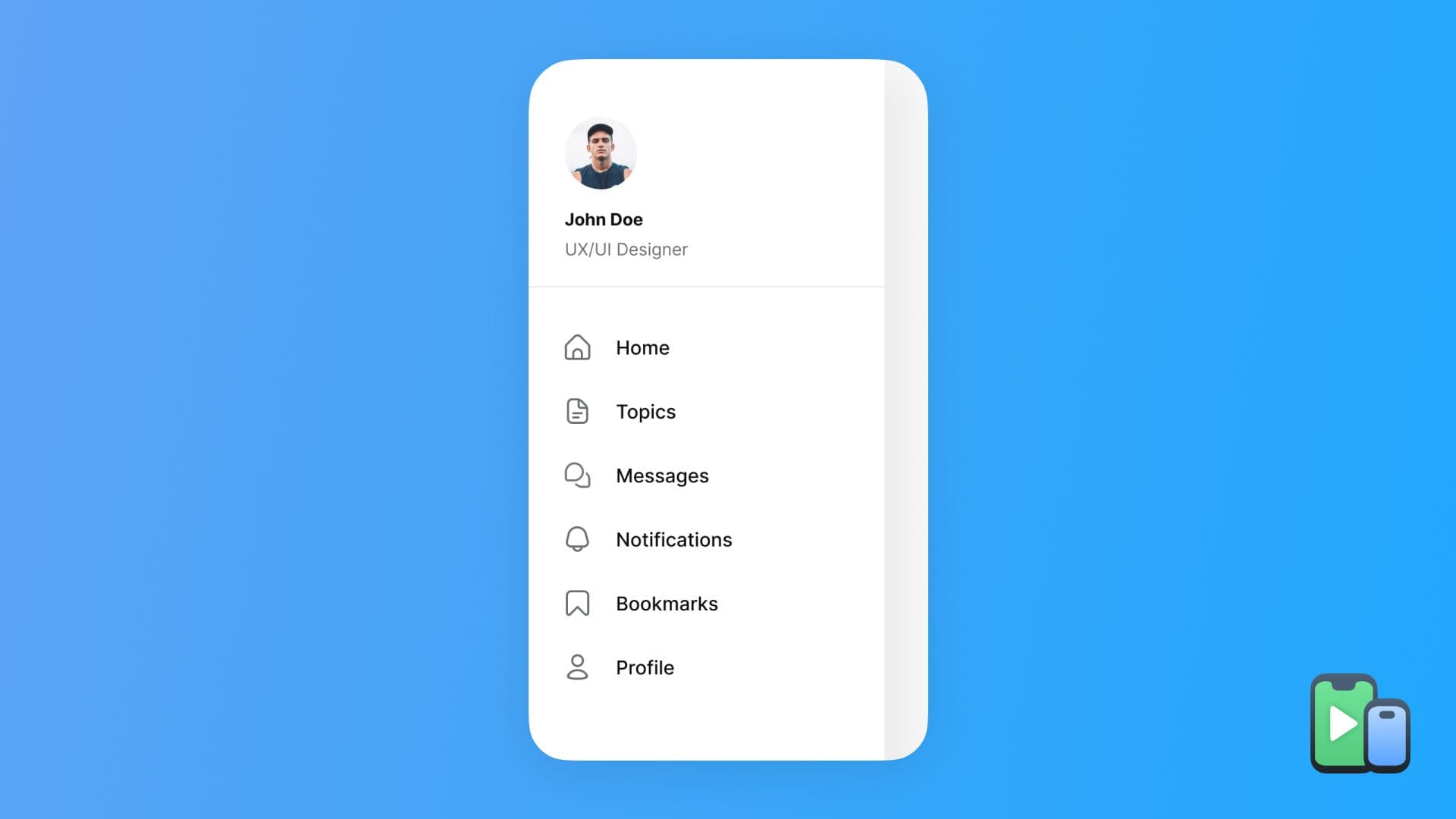
Priority+ shows primary navigation items directly, with overflow items hidden in a "more" menu. It adapts based on available space.
When to use:
- 5-8 navigation items with clear priority
- Responsive designs that need consistency across devices
- When most users only need 3-4 primary options
How it works: Display top priority items directly. As screen space decreases, move lower-priority items to overflow menu.
Pros: Balances accessibility and space efficiency
Cons: Requires JavaScript, more complex implementation
4. Tab Bar + Hamburger Hybrid
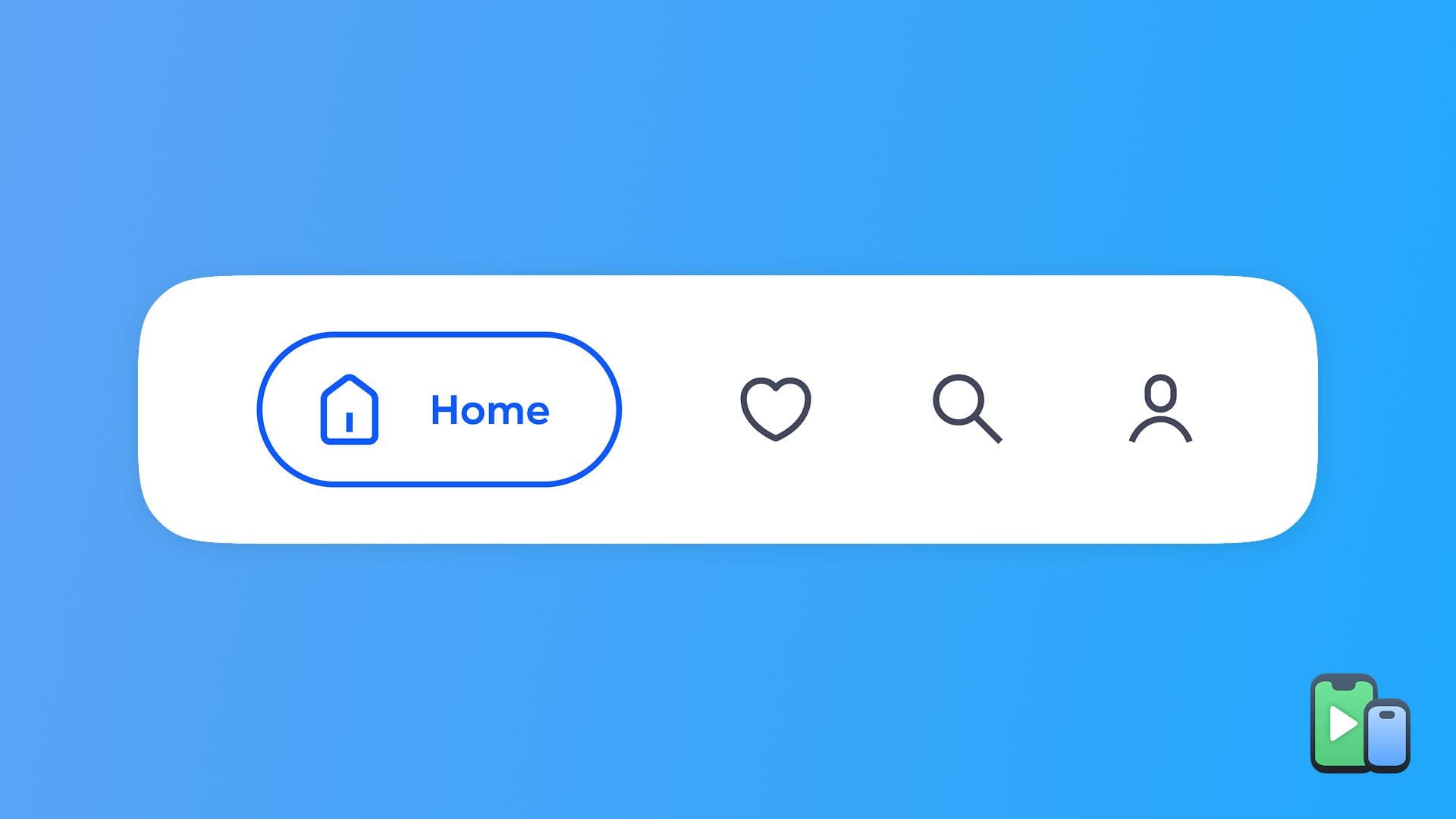
Combine bottom tabs for primary sections with a hamburger menu for secondary options. This gives users quick access to main features while accommodating complex navigation.
When to use:
- Apps with clear primary sections AND extensive secondary navigation
- E-commerce (products in tabs, account/help in hamburger)
- Content platforms (categories in tabs, settings in hamburger)
Pros: Best of both patterns, highly scalable
Cons: Two navigation systems to maintain, potential confusion
5. Sticky Header with Dropdown
A persistent header with primary categories that expand to show subcategories. Common in mobile web where bottom tabs feel less natural.
When to use:
- Traditional websites adapting to mobile
- Content sites with hierarchical structures
- When bottom navigation feels inappropriate for brand
Implementation tip:
.sticky-header {
    position: sticky;
    top: 0;
    z-index: 100;
    background: #ffffff;
}

/* Collapse on scroll down, show on scroll up */
.header-hidden {
    transform: translateY(-100%);
    transition: transform 0.3s;
}
Pros: Familiar to desktop users, always visible
Cons: Consumes top screen space, can feel heavy
6. Gesture-Based Navigation
Swipe gestures for navigation (swipe left/right between sections). Works well for linear content or apps with few primary sections.
When to use:
- Image galleries, stories, sequential content
- 2-3 main sections users navigate between frequently
- App-like experiences
Caution: Always provide visible navigation as backup - not all users discover gestures.
Pros: Feels native, saves screen space
Cons: Low discoverability, conflicts with browser gestures
Choosing the Right Pattern for Your Site
Different navigation patterns work for different use cases:
E-commerce: Bottom tab bar (Home, Search, Cart, Account) + hamburger for categories
News/Content: Hamburger menu or sticky header with categories
SaaS/Dashboard: Bottom tabs for main features + settings in top-right
Landing pages: Minimal sticky header or no persistent navigation
Social/Community: Bottom tabs for feed, explore, profile, notifications
The key question: What are the 3-5 things users do most often? Those should be immediately accessible. Everything else can hide behind menus.
Testing Navigation Across Devices
Navigation patterns that work on iPhone might feel awkward on Android, and vice versa. Device size, OS conventions, and browser chrome all affect how navigation performs.
Platform differences to test:
iOS: Bottom tabs feel natural (iOS apps use them extensively). Users expect navigation in bottom corners.
Android: Three-dot overflow menu is familiar from Material Design. Back button behavior affects navigation flow.
Large phones: One-handed use favors bottom navigation. Top-corner hamburgers are hard to reach.
Small phones: Screen space is precious. Minimal navigation works best.
Testing navigation requires previewing across multiple device sizes and OS platforms. Phone Simulator makes this instant - switch between iPhone 17 with its tall screen, Galaxy S25's aspect ratio, and compact devices to see exactly how your navigation feels on each. You'll immediately spot issues like unreachable buttons on large screens or cramped navigation on small ones.
For deeper insights into platform-specific design patterns, our guide on iOS vs Android rendering differences explains how each platform approaches mobile UI differently.
Design Best Practices That Apply to All Patterns
Regardless of which navigation pattern you choose, these principles always apply:
Touch Targets Must Be 44×44px Minimum
Apple's Human Interface Guidelines recommend 44×44px minimum. Android suggests 48×48px. Use the larger value to be safe:
.nav-button {
    display: flex;
    justify-content: center;
    align-items: center;
    min-width: 48px;
    min-height: 48px;
}
Visual Feedback for Active States
Users need to know where they are. Make active navigation items visually distinct:
.nav-item.active {
    color: #2563eb;
    font-weight: 600;
    border-bottom: 2px solid #2563eb;
}
Keep Labels Short (1-2 Words)
"Account" not "My Account Settings". "Cart" not "Shopping Cart". Space is limited.
Use Icons + Text (Not Just Icons)
Icons alone reduce comprehension by 30-40%. Combine icon with label for clarity:
<button class="nav-item">
    <svg><!-- icon --></svg>
    <span>Home</span>
</button>
Avoid Nested Dropdowns on Mobile
Nested menus are difficult to use on touch screens. Flatten hierarchies or use dedicated category pages.
Respect Platform Conventions
iOS users expect certain patterns. Android users expect others. When possible, adapt to platform norms rather than forcing one universal design.
Common Mobile Navigation Mistakes
Mistake 1: Too Many Options
More than 7 items in primary navigation overwhelms users. Prioritize ruthlessly.
Mistake 2: Tiny Touch Targets
Buttons smaller than 44×44px create frustration and misclicks. Always check on real devices.
Mistake 3: Hidden Navigation Without Visual Cue
If navigation isn't visible, users won't find it. Hamburger menus work because the icon is recognizable. Pure gesture navigation often confuses.
Mistake 4: Inconsistent Placement
Moving navigation between pages breaks muscle memory. Keep position consistent.
Mistake 5: Ignoring Safe Areas
Notches, home indicators, and rounded corners need accommodation. Use CSS environment variables:
padding-bottom: env(safe-area-inset-bottom);
padding-left: env(safe-area-inset-left);
Performance Matters for Navigation
Heavy navigation JavaScript can delay interactivity. Keep navigation code lightweight:
- Defer non-critical navigation animations
- Lazy load menu contents if extensive
- Avoid render-blocking scripts for navigation
- Test navigation responsiveness on budget Android devices
Slow navigation feels broken even if the rest of the site is fast. First Input Delay (FID) under 100ms should apply to navigation interactions.
Real-World Examples and Stats
Airbnb: Bottom tab bar with 5 sections. User testing showed 40% faster task completion versus hamburger menu.
Medium: Sticky top bar that auto-hides on scroll down, reappears on scroll up. Balances space and accessibility.
Instagram: Bottom tabs for primary features (Home, Search, Reels, Shop, Profile). Universally accessible.
Amazon: Hamburger menu for categories, persistent search and cart at top, bottom bar in app. Handles complexity without overwhelming.
The pattern? Successful mobile sites prioritize 3-5 core actions and make them instantly accessible.
Testing Your Navigation in Real Conditions
Beyond visual testing, verify navigation works under realistic conditions:
- One-handed use: Can users reach all elements with thumb?
- Dark mode: Does navigation remain visible and clear?
- Slow connections: Does navigation appear quickly even on 3G?
- Screen readers: Is navigation semantically correct with proper ARIA labels?
Quick device emulation helps catch most issues during development. For a comprehensive testing workflow that covers navigation across 30+ device profiles, check out our guide on testing websites without physical devices.
The Bottom Line
Mobile navigation isn't about cramming desktop menus into small screens - it's about rethinking information architecture for how people actually use phones.
Bottom tab bars work for apps - like experiences with clear sections. Hamburger menus handle complexity when space is limited. Hybrid approaches combine both for maximum flexibility.
The right pattern depends on your content structure, user needs, and brand expectations. Test ruthlessly across devices, prioritize the most important actions, and keep touch targets large enough for real fingers.
Ready to see how your navigation performs across different mobile devices? Phone Simulator for Google Chrome lets you instantly preview your navigation on iPhone, Android, and tablet screens-helping you catch usability issues before your users do.
Great navigation is invisible until needed, accessible when required, and never in the way.
Frequently Asked Questions
What is mobile navigation?
Mobile navigation is the system that helps users move through a website or app on a mobile device. It must be optimized for touch, small screens, and one-handed use.
Why is mobile navigation important for UX?
Poor mobile navigation causes users to leave within 10–15 seconds. Good navigation improves usability, engagement, and conversion rates.
What is the best mobile navigation pattern?
There is no single best pattern. Bottom tab bars work best for 3–5 core actions, while hamburger menus are better for complex hierarchies.
What is the minimum touch target size for mobile navigation?
Touch targets should be at least 44×44px (48×48px recommended) to prevent misclicks.
How does mobile navigation affect SEO?
Clear mobile navigation improves crawlability, internal linking, and user engagement - all indirect ranking factors.
How can I test mobile navigation across devices?
Use a mobile emulator to preview navigation on different screen sizes, OS platforms, and orientations without physical devices.
Install Phone Simulator Today
Join thousands of developers and designers who test their sites on real devices for free.
- Free
- 30,000+ users
Read More About Mobile Testing & UX

How to Run an Android Emulator in Chrome
A lightweight Android emulator in Chrome previews your site on real Android device sizes — no Android Studio needed. Here's how to run one and what to check.
Read more

How to View Mobile Version of Website on Chrome
See how to view the mobile version of any website directly in Chrome — using built-in DevTools and a free device-simulator extension that shows a realistic phone frame.
Read more

Why Your Website Should Load in Under 2 Seconds on Mobile - Backed by 2025–2026 Data
This guide explains why 2 seconds became the standard, what current data tells us about mobile performance, and how to hit that target consistently across devices and networks.
Read more