

Why Android and iOS Render Websites Differently - And How to Design for Both
Android and iOS render websites differently due to fundamental differences in their browser engines, default settings, and system-level behaviors. Understanding these differences is crucial for creating websites that work seamlessly across all devices.
📋 Table of Contents
- The Browser Engine Battle: WebKit vs Blink
- Font Rendering and Typography Differences
- Viewport and Safe Area Handling
- Touch and Interaction Patterns
- CSS Property Support and Quirks
- JavaScript Performance and APIs
- How to Design for Both Platforms Successfully
- The Future of Cross-Platform Web Development
- Final Thoughts
If you've ever opened your website on an iPhone and an Android phone side-by-side, you might have noticed something frustrating: they don't look quite the same. Fonts appear at different sizes, buttons shift position, and sometimes entire layouts break on one platform while looking perfect on the other. This isn't a bug in your code-it's the reality of mobile web development.
The Browser Engine Battle: WebKit vs Blink
The core reason for rendering differences lies in the browser engines themselves. iOS devices exclusively use WebKit, Apple's rendering engine that powers Safari. Even if users install Chrome or Firefox on their iPhone, Apple's App Store policies require all iOS browsers to use WebKit under the hood.
Android devices primarily use Blink, Google's fork of WebKit that powers Chrome. While Android users can install various browsers, Chrome holds the dominant market share and sets the standard for how most Android users experience the web.
Despite sharing a common ancestor, WebKit and Blink have diverged significantly over the years. Each engine interprets CSS properties differently, handles JavaScript execution at varying speeds, and implements web standards on different timelines.
Font Rendering and Typography Differences
One of the most noticeable differences appears in how text renders. iOS uses San Francisco as its system font and applies subpixel antialiasing that makes text appear sharper but sometimes thinner. Android uses Roboto and employs grayscale antialiasing that can make fonts look slightly heavier.
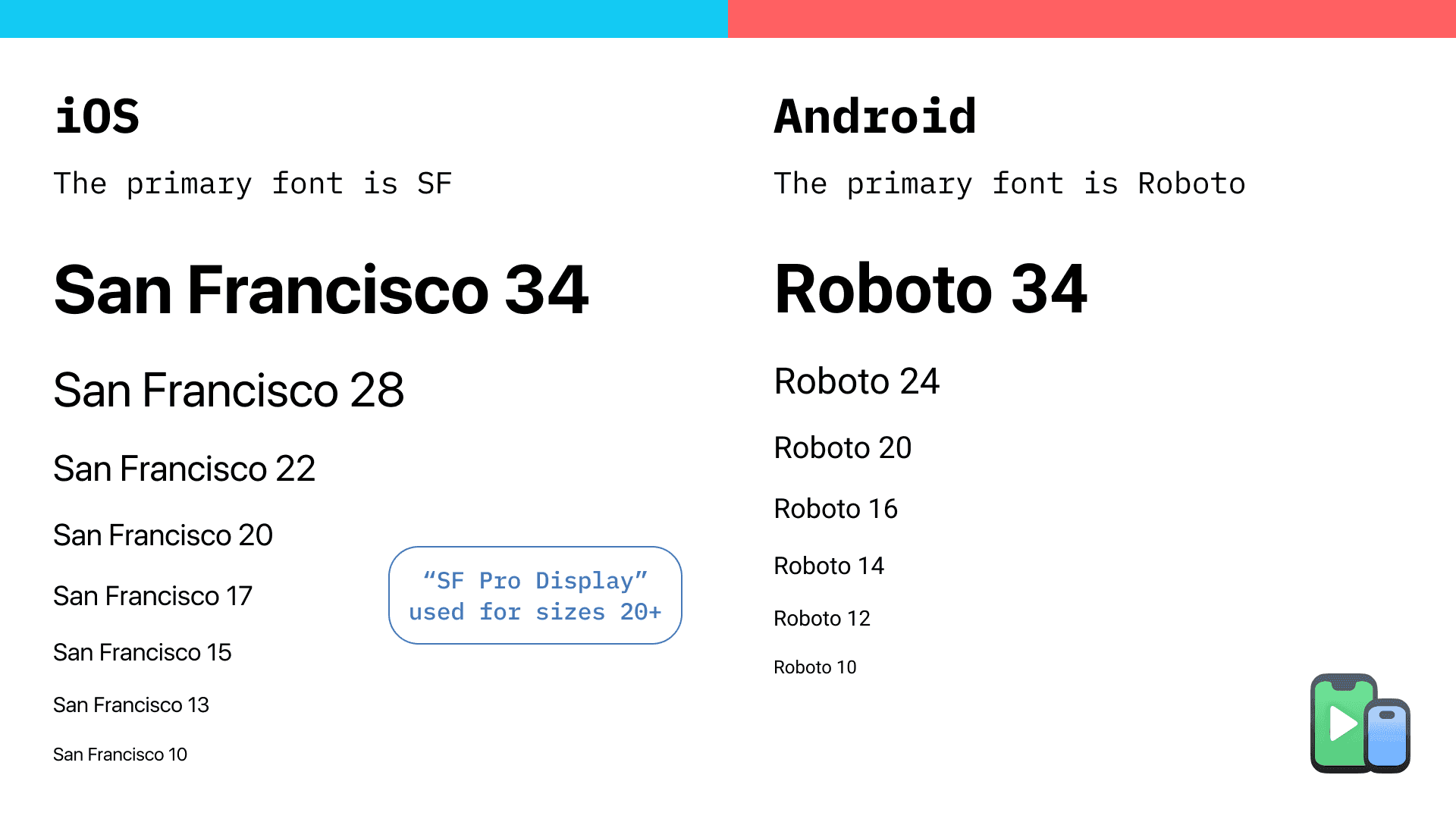
Beyond the visual appearance, default font sizes differ between platforms:
- iOS Safari has a minimum font size of 10px (though users can adjust this)
- Android Chrome applies text auto-sizing that increases font sizes on wide viewports to improve readability
- Line-height calculations can vary slightly, affecting vertical spacing
Design tip: Always test your typography on both platforms. What looks perfectly readable on Android might appear cramped on iOS, and vice versa. Use relative units like rem or em rather than fixed pixel values to ensure better consistency.
Viewport and Safe Area Handling
The introduction of edge-to-edge screens with notches and dynamic islands has created new challenges. iOS introduced the concept of safe areas with env() CSS functions that help developers respect the notch area:
padding-top: env(safe-area-inset-top);
padding-bottom: env(safe-area-inset-bottom);
Android handles punch-hole cameras and notches differently through display cutouts, and not all Android browsers support the same CSS environment variables consistently.
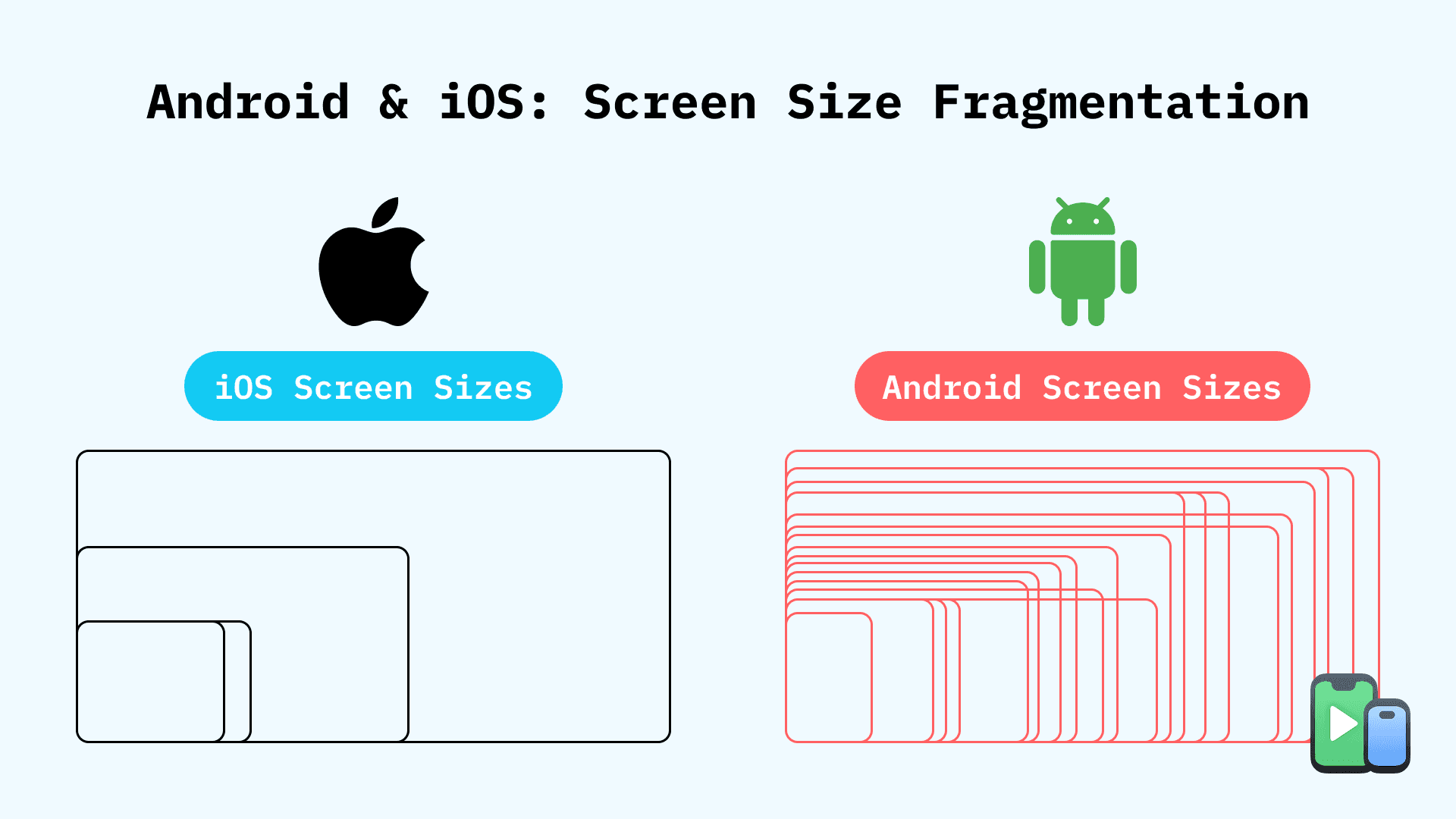
The viewport meta tag also behaves differently:
- iOS Safari has a collapsing URL bar that changes the viewport height during scroll
- Android Chrome's behavior with the address bar varies by version
- The
viewport-fit=coverproperty works differently across platforms
Touch and Interaction Patterns
User interactions reveal another layer of platform differences. iOS implements a 300ms tap delay on certain elements for double-tap detection, though this has been largely mitigated with the touch-action CSS property. Android handles touch events with slightly different timing and pressure sensitivity.
Scroll behavior diverges significantly:
- iOS has elastic scrolling (bounce effect) enabled by default
- Android uses edge glow effects
- Momentum scrolling feels different on each platform
- CSS smooth-scrolling implementation varies
Design tip: Test your scroll-heavy interfaces thoroughly. Parallax effects, sticky headers, and scroll-triggered animations often need platform-specific adjustments.
CSS Property Support and Quirks
While modern browsers have achieved impressive standards compliance, subtle differences remain:
Flexbox and Grid: Both platforms support modern layout techniques, but older Android devices (still in use) may have buggy implementations. iOS Safari sometimes handles flex-shrink differently than expected.
Position: fixed: iOS Safari has historically had issues with fixed positioning, especially in relation to the virtual keyboard and URL bar. Recent versions have improved, but testing remains essential.
Backdrop-filter: Supported on iOS but requires vendor prefixes and doesn't work consistently across all Android versions.
Form elements: Input fields, select dropdowns, and date pickers render with completely different native styles. Customizing these elements requires careful CSS that accounts for both platforms.
JavaScript Performance and APIs
JavaScript execution speed varies between platforms due to different JIT compilers and optimization strategies. WebKit's JavaScriptCore and Blink's V8 engine handle code differently, which can affect:
- Animation frame rates
- Heavy computational tasks
- Library performance
- Memory management
Some Web APIs also have different implementations or availability. For example, the Web Share API works well on modern iOS but has more limited support across Android versions.
How to Design for Both Platforms Successfully
Now that we understand the differences, here's how to build websites that work beautifully everywhere:
1. Embrace Progressive Enhancement
Start with a solid, functional base that works on all browsers, then layer on enhanced features for more capable devices. This approach ensures your site never completely breaks on any platform.
2. Use Feature Detection, Not Browser Detection
Instead of detecting iOS or Android specifically, use feature detection libraries like Modernizr or native JavaScript to check for capability support:
if ('serviceWorker' in navigator) {
 // Progressive Web App features
}
3. Test Early and Test Often
The single most important practice is testing on real devices. While you're developing, you need to see how your changes affect both platforms immediately. This is exactly why we built Phone Simulator - it allows you to preview your website on various mobile devices directly from your browser, switching between iPhone and Android viewports instantly without deploying code or reaching for physical devices.
Whether you're checking how your site performs on mobile or specifically want to test on the latest iPhone models, having a quick way to visualize cross-platform differences accelerates your development workflow dramatically.
4. Implement Platform-Specific CSS When Necessary
Sometimes you need targeted fixes. Use CSS media queries combined with feature detection:
@supports (-webkit-touch-callout: none) {
/* iOS-specific styles */
.element {
    -webkit-overflow-scrolling: touch;
  }
}
5. Pay Attention to Input and Form Design
Forms are where platform differences become most apparent to users:
- Use appropriate
inputmodeandtypeattributes to trigger the right keyboard - Test autofill behavior on both platforms
- Ensure tap targets are at least 44×44 pixels (iOS guideline) or 48×48 dp (Android guideline)
- Account for virtual keyboard appearance that changes viewport height
6. Optimize Touch Interactions
- Add
touch-action: manipulationto clickable elements to remove tap delay - Provide adequate spacing between interactive elements
- Test gesture interactions like swipe and pinch
- Consider platform conventions (iOS bottom navigation vs Android top navigation)
7. Handle Media Queries Consistently
Both platforms support responsive design through media queries, but be aware of:
- Different pixel densities requiring different image assets
- The
prefers-color-schememedia query for dark mode (support varies) - Orientation change events that behave slightly differently
The Future of Cross-Platform Web Development
The gap between iOS and Android rendering is gradually narrowing as web standards mature and both platforms adopt more consistent implementations. The rise of Progressive Web Apps (PWAs) is also pushing vendors to align their capabilities.
However, complete uniformity is unlikely and perhaps not even desirable. Each platform has unique design languages and user expectations that developers should respect rather than fight against.
Final Thoughts
Designing for both Android and iOS doesn't mean making everything identical. It means understanding the platforms' differences and making deliberate choices about when to unify and when to embrace platform-specific patterns.
The key to success lies in continuous testing throughout your development process. By catching rendering differences early, you can make informed decisions about your approach rather than discovering problems after launch.
Ready to streamline your cross-platform testing? Try Phone Simulator and see how your website renders across multiple devices instantly - no physical devices required, no complicated setup, just fast, accurate mobile previews right in your browser.
Building responsive websites that work perfectly on every device starts with the right testing tools. Start testing smarter today.
Frequently Asked Questions
Why does my website look different on iPhone and Android?
Because iPhones use the WebKit browser engine, while most Android devices use Blink, which render CSS, fonts, and layouts differently.
Do all browsers on iPhone use the same engine?
Yes. All iOS browsers, including Chrome and Firefox, are required to use Apple’s WebKit engine.
Which browser engine does Android use?
Most Android browsers, including Chrome, use the Blink engine developed by Google.
Why do fonts look different on iOS and Android?
iOS uses the San Francisco system font with subpixel antialiasing, while Android uses Roboto with grayscale antialiasing, affecting font weight and spacing.
Are touch interactions different on iOS and Android?
Yes. Scrolling physics, tap delays, gesture handling, and momentum scrolling behave differently across platforms.
Do CSS features work the same on iOS and Android?
Not always. Some CSS properties like position: fixed, backdrop-filter, and flexbox behaviors differ between WebKit and Blink.
Can JavaScript performance differ between iOS and Android?
Yes. iOS uses JavaScriptCore, while Android uses V8, which can result in different animation performance and memory behavior.
How can I test my website on both iOS and Android easily?
You can use a mobile emulator tool to preview real iPhone and Android viewports directly in your browser without physical devices.
Install Phone Simulator Today
Join thousands of developers and designers who test their sites on real devices for free.
- Free
- 30,000+ users
Read More About Mobile Testing & UX

How to Run an Android Emulator in Chrome
A lightweight Android emulator in Chrome previews your site on real Android device sizes — no Android Studio needed. Here's how to run one and what to check.
Read more

How to View Mobile Version of Website on Chrome
See how to view the mobile version of any website directly in Chrome — using built-in DevTools and a free device-simulator extension that shows a realistic phone frame.
Read more

Why Your Website Should Load in Under 2 Seconds on Mobile - Backed by 2025–2026 Data
This guide explains why 2 seconds became the standard, what current data tells us about mobile performance, and how to hit that target consistently across devices and networks.
Read more