

How to Test a Website Across 30+ Devices Without Buying Them: 2026 Workflow

Modern testing workflows combine browser tools, emulation software, and strategic real-device testing to catch 95% of issues without owning a single extra device. This guide shows you how to build a comprehensive testing process that covers everything from the latest iPhone 17 to budget Android phones - without spending thousands on hardware.
📋 Table of Contents
- Why Testing Across Multiple Devices Actually Matters
- The Three-Tier Testing Strategy
- Building Your Testing Workflow: Step-by-Step
- Common Device Testing Mistakes to Avoid
- Sample Testing Checklist for Different Project Scales
- Optimizing Your Testing Workflow for Speed
- The Reality: You Can't Test Everything
- Start Testing Smarter, Not Harder
Building a responsive website is one thing. Verifying it actually works across dozens of devices is another. You can't reasonably buy every iPhone model, Android flagship, tablet variant, and foldable phone on the market. Even if budget weren't an issue, managing that many physical devices would be a logistical nightmare. The good news: you don't need to.
Why Testing Across Multiple Devices Actually Matters
"It looks fine on my laptop" is how responsive design bugs make it to production. Real devices behave differently than your desktop browser's responsive mode suggests:
- Viewport variations: Modern phones range from 360px to 430px wide, with dozens of aspect ratios (19.5:9, 20:9, 21:9)
- Browser differences: Safari on iOS renders differently than Chrome on Android, even for identical CSS
- Touch vs cursor: Buttons that work with a mouse may be too small for fingers
- Performance gaps: Budget Android devices struggle with animations that run smoothly on flagship phones
- Safe area quirks: Notches, punch-holes, and foldable hinges affect layout in ways desktop can't replicate
A single layout bug on mobile can cost you 20-30% of potential conversions. Comprehensive testing catches these issues before users encounter them.
The Three-Tier Testing Strategy
Professional developers don't test on every device for every change. They use a tiered approach that balances thoroughness with efficiency.
Tier 1: Rapid Development Testing (Every Code Change)
During active development, you need instant feedback. Opening a live device for every CSS tweak kills productivity.
Tools for Tier 1:
- Browser DevTools responsive mode
- Lightweight device emulators
- Fast preview tools integrated into your workflow
This tier catches obvious breaks-collapsed layouts, missing elements, basic rendering issues. It's not comprehensive, but it's fast enough to use constantly.
Tier 2: Pre-Deployment Verification (Before Each Release)
Before pushing code live, test on realistic device profiles that represent your actual user base.
Focus for Tier 2:
- Top 5-10 devices from your analytics (iPhone 15 Pro, Galaxy S22, Pixel 8, etc.)
- Edge cases like small budget Android phones (360px width)
- Large devices like tablets and foldables
- Different browsers (Safari, Chrome, Firefox)
This catches device-specific quirks, performance issues, and touch interface problems that DevTools miss.
Tier 3: Real Device Validation (Monthly or Major Features)
Physical device testing is still necessary, but only periodically. Use real devices to validate:
- Touch gesture behavior (swipe, pinch, long-press)
- Performance under realistic network conditions
- Browser behavior with actual mobile RAM constraints
- OS-level features (sharing, autofill, notifications)
You don't need 30 physical devices-just 3-4 representative ones covering iOS, Android flagship, and Android budget segments.
Building Your Testing Workflow: Step-by-Step
Step 1: Identify Your Target Devices
Don't test blindly. Check your analytics to see what devices actually visit your site.
Key metrics to examine:
- Device models (iPhone 16, Galaxy S25, Pixel 9, etc.)
- Screen resolutions
- Browser versions
- Operating systems
Prioritize the top 10 device/browser combinations that represent 80% of your traffic. These should drive your Tier 2 testing list.
If you're curious about why certain devices render differently, our article on iOS vs Android rendering differences explains the technical reasons browsers behave differently across platforms.
Step 2: Set Up Browser-Based Emulation
Modern browsers include robust device emulation. It's not perfect, but it's your fastest testing tool.
Chrome DevTools responsive mode:
- Press
F12→ Click device icon orCtrl+Shift+M - Select specific devices or set custom dimensions
- Test different pixel densities and touch modes
- Throttle network to simulate 3G/4G
Firefox Responsive Design Mode:
Ctrl+Shift+Mto toggle- Includes touch simulation
- Tests multiple viewports simultaneously
Safari Web Inspector (for iOS testing):
- Develop menu → Enter Responsive Design Mode
- Critical for testing Safari-specific rendering issues
Limitations to remember:
- Browser emulation doesn't replicate actual device performance
- Touch events are simulated, not real
- Some device-specific bugs won't appear (notch handling, safe areas)
Use browser tools for Tier 1 testing during development, but don't stop there.
Step 3: Use Dedicated Device Preview Tools
Browser DevTools are powerful but clunky for rapid testing. Dedicated tools streamline the process.
What to look for in preview tools:
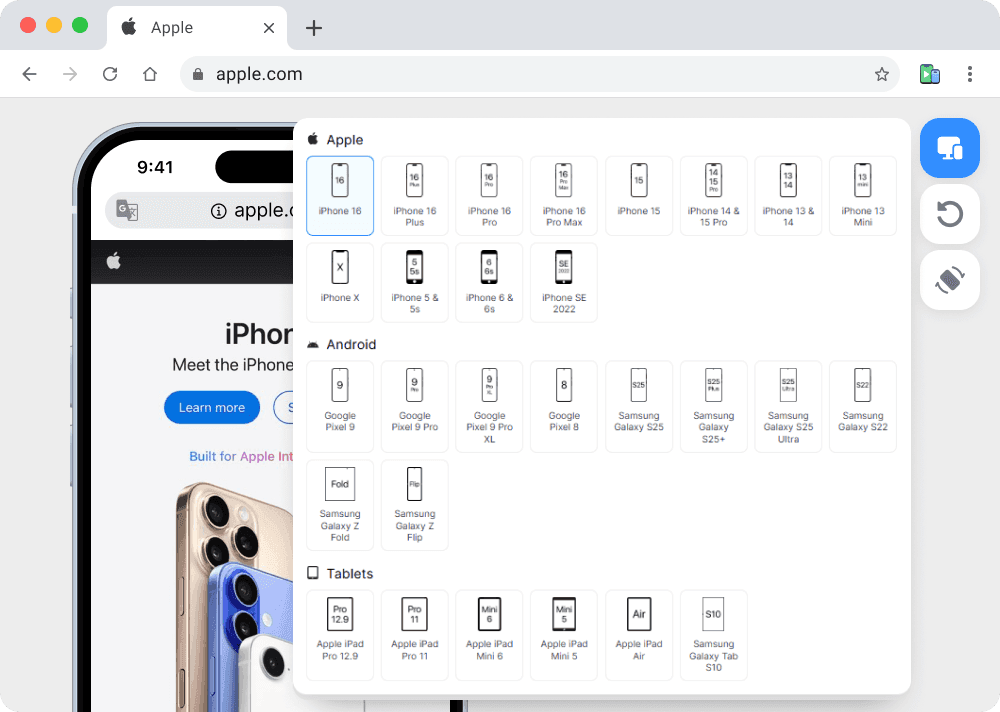
- Extensive device library (30+ modern devices)
- One-click switching between devices
- Accurate viewport dimensions including safe areas
- Quick access without leaving your browser
These tools sit between basic DevTools and full device testing. They're fast enough to use continuously but more accurate than generic responsive modes.
For developers who need to quickly visualize layouts across many devices, lightweight browser extensions offer the fastest workflow. You can preview iPhone, Android, and tablet layouts instantly without deployment or configuration.
Step 4: Test on Cloud-Based Device Farms (When Budget Allows)
Cloud platforms provide access to real physical devices remotely. They're expensive but valuable for Tier 3 validation.
Popular platforms:
- BrowserStack: 3000+ real devices, $39/month minimum
- Sauce Labs: Real devices with automated testing, $49/month
- LambdaTest: 3000+ browser/device combinations, $15/month
When cloud testing makes sense:
- Testing obscure device/OS combinations
- Validating touch gestures and performance
- Running automated cross-device test suites
- Pre-launch validation for critical features
When it's overkill:
- Quick layout checks during development
- Testing minor CSS adjustments
- Small projects with limited budgets
Most developers use cloud platforms sparingly - for major releases or when analytics show issues on specific devices they don't own.
Step 5: Acquire a Minimal Physical Device Collection
You can't eliminate physical testing entirely. Budget for 2-4 strategic devices:
Recommended baseline:
- Current iPhone (tests iOS Safari) - $500-800 used/refurbished
- Android flagship (Galaxy S24 or Pixel 8) - $400-600 used
- Budget Android (under $200) - tests low-end performance
- iPad or Android tablet (optional) - tests tablet layouts
Buy previous-generation models used. An iPhone 14 tests iOS Safari just as well as an iPhone 17 for 40% less.
Testing priority on physical devices:
- Touch interface responsiveness
- Scroll performance and animation frame rates
- Form input behavior (keyboard triggering, autofill)
- Network performance on actual cellular connections
Step 6: Test Foldable and Unusual Form Factors
Foldable phones are no longer experimental- Galaxy Z Fold and Flip devices have significant market share in certain regions. Their unusual aspect ratios break assumptions about mobile layouts.
Foldable considerations:
- Unfolded state creates tablet-like dimensions
- Folded state is narrower than typical phones
- App continuity when folding/unfolding
- Different safe areas for hinges
You don't need to own foldables to test them - good emulation tools include these profiles. We cover foldable design considerations in detail in our guide on designing for foldable devices.
Step 7: Automate Visual Regression Testing
For mature projects, automated visual testing catches unintended changes across devices.
Visual regression tools:
- Percy (visual testing platform) - $349/month
- Chromatic (Storybook integration) - $149/month
- BackstopJS (open source, self-hosted)
These tools take screenshots across multiple viewports and flag visual changes. They're excessive for small projects but valuable for large applications where manual testing becomes prohibitive.
Common Device Testing Mistakes to Avoid
Testing Only on Your Personal Device
Your iPhone 15 Pro or Galaxy S24 doesn't represent average users. Budget Android devices with 2-3 year old specs make up significant market share in many regions.
Test on representative low-end devices to catch performance issues.
Ignoring Landscape Orientation
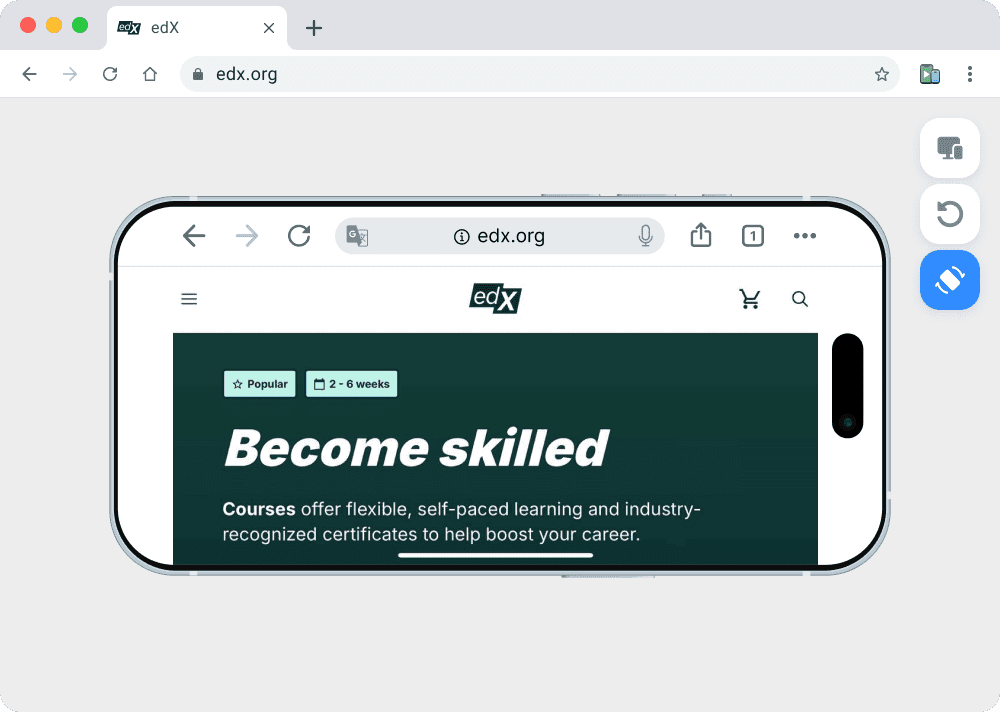
Most testing happens in portrait mode, but users browse in landscape - especially on tablets. Always test both orientations.
Assuming Browser DevTools Are Sufficient
DevTools responsive mode is a starting point, not the finish line. It misses device-specific quirks, performance issues, and touch behavior.
Testing Only at Launch
Device profiles change. New phones launch, browsers update, and user behavior shifts. Schedule monthly testing sessions to catch regressions.
Forgetting About Older Devices
Your analytics might show 80% modern devices, but that remaining 20% on iPhone 11 or Galaxy S10 still matters. Test older devices periodically.
Sample Testing Checklist for Different Project Scales
Small Project (Personal Site, Portfolio)
Minimum testing:
- Chrome DevTools: iPhone 13, Galaxy S21, Pixel 5
- Safari on your Mac (simulates iOS)
- One physical device (preferably Android mid-range)
Frequency: Before each major update
Medium Project (Small Business, E-commerce)
Testing workflow:
- Browser emulation for daily development
- Preview across 10-15 device profiles before deployment
- Physical testing on 2-3 devices monthly
- Analytics review to adjust device priority
Frequency: Daily for active development, weekly for deployed sites
Large Project (SaaS, High-Traffic Site)
Comprehensive testing:
- Automated visual regression across 20+ viewports
- Cloud device farm for quarterly validation
- Physical testing on 5-6 representative devices
- Performance testing on budget Android devices
- Dedicated QA process before releases
Frequency: Continuous integration testing, monthly physical validation
Optimizing Your Testing Workflow for Speed
Time is the real constraint. Here's how to test comprehensively without grinding development to a halt:
During active development:
- Keep a preview tool open in a second monitor
- Test only top 3 devices (iPhone, Android flagship, Android budget)
- Focus on layout and critical interactions
Before committing code:
- Test on 5-7 device profiles
- Check both portrait and landscape
- Validate touch targets and tap areas
Before deployment:
- Full device matrix testing (15-20 devices)
- Performance testing on slow networks
- Real device validation on physical hardware
After deployment:
- Monitor error tracking for device-specific issues
- Review analytics for unexpected behavior patterns
- Schedule monthly regression testing
If you're looking for a streamlined approach to mobile testing workflows, our comprehensive guide on testing websites on mobile in 2026 covers browser tools, testing strategies, and recommended workflows in more detail.
The Reality: You Can't Test Everything
Even with unlimited resources, testing every device/browser/OS combination is impossible. The mobile device market includes thousands of variations.
Instead of chasing perfect coverage, focus on:
- High-impact testing: Prioritize devices representing 80% of your traffic
- Representative sampling: Cover iOS, Android flagship, Android budget, and tablets
- Continuous monitoring: Use analytics and error tracking to catch issues in production
- Iterative improvement: Fix problems as they appear rather than preventing every possibility
A pragmatic testing workflow catches 90% of issues with 20% of the effort. Spending weeks testing obscure devices rarely improves outcomes meaningfully.
Start Testing Smarter, Not Harder
Testing across dozens of devices doesn't require buying hardware or expensive subscriptions. A combination of browser tools, smart emulation, and strategic physical testing covers the vast majority of real-world scenarios.
The key is building testing into your workflow rather than treating it as an afterthought. Test during development, verify before deployment, and validate periodically on real devices.
Ready to streamline your cross-device testing? Phone Simulator gives you instant access to 30+ device profiles - from the latest iPhone 17 to Android flagships and foldables. Preview your layouts across multiple devices with one click, directly in your browser.
No hardware required. No complex setup. Just fast, accurate device previews that fit your development workflow.
Smart testing workflows help you ship better products faster. Start testing comprehensively today.
Frequently Asked Questions
Why is testing websites across multiple devices important?
Because real devices differ in screen size, aspect ratio, performance, browsers, and safe areas, which can cause layout and usability issues that desktop testing misses.
Is browser responsive mode enough for mobile testing?
No. Browser responsive mode is useful for quick checks but does not replicate real device behavior, performance limits, or OS-specific quirks.
How many devices should I test my website on?
You don’t need to test every device. Focus on the top 5–10 devices that represent around 80% of your traffic, plus a few edge cases.
Do I need physical devices to test responsive websites?
Not for daily testing. Physical devices are useful for periodic validation, but most layout issues can be caught with accurate device emulation tools.
What is the biggest mistake in device testing?
Testing only on your personal device. It rarely represents the diversity of real users and hides performance and layout issues.
How can I test foldable phones without owning one?
Use emulation tools that include foldable device profiles and simulate folded and unfolded states.
How often should cross-device testing be done?
During development, before deployment, and periodically after launch to catch regressions caused by browser updates or new devices.
Install Phone Simulator Today
Join thousands of developers and designers who test their sites on real devices for free.
- Free
- 30,000+ users
Read More About Mobile Testing & UX

How to Run an Android Emulator in Chrome
A lightweight Android emulator in Chrome previews your site on real Android device sizes — no Android Studio needed. Here's how to run one and what to check.
Read more

How to View Mobile Version of Website on Chrome
See how to view the mobile version of any website directly in Chrome — using built-in DevTools and a free device-simulator extension that shows a realistic phone frame.
Read more

Why Your Website Should Load in Under 2 Seconds on Mobile - Backed by 2025–2026 Data
This guide explains why 2 seconds became the standard, what current data tells us about mobile performance, and how to hit that target consistently across devices and networks.
Read more