

Dark Mode Implementation: Best Practices for Mobile in 2026
Dark mode isn't optional anymore - it's expected. Over 80% of mobile users now prefer dark interfaces, and operating systems from iOS to Android ship with dark mode enabled by default. If your website doesn't support it, you're actively frustrating the majority of your mobile audience.
📋 Table of Contents
- Why Dark Mode Matters More on Mobile
- Understanding System-Level Dark Mode Detection
- Color Palette Design for Dark Mode
- Handling Images and Media in Dark Mode
- Form Elements and Interactive Components
- CSS Custom Properties: The Smart Approach
- JavaScript Enhancement (Optional but Powerful)
- Testing Dark Mode Across Devices
- Common Dark Mode Mistakes to Avoid
- Performance Considerations for Mobile
- Accessibility Beyond Color
- Advanced: Automatic Theme Switching
- Future-Proofing Your Dark Mode Implementation
- Real-World Testing Strategy
- Conclusion
Implementing dark mode isn't just inverting colors and calling it done. Poor implementations cause eye strain, reduce readability, and break layouts in ways that only appear on actual devices. This guide covers everything you need to build dark mode experiences that work flawlessly across mobile platforms, with practical code examples and testing strategies.
Why Dark Mode Matters More on Mobile
Desktop users might tolerate bright white screens in well-lit offices. Mobile users don't have that luxury. They browse in bed, on commutes, in dark rooms, and outdoors where screen glare becomes a real problem.
Mobile-specific benefits of dark mode:
Battery savings: OLED and AMOLED screens (dominant in modern phones) consume significantly less power displaying black pixels. Dark mode can extend battery life by 15-30% on mobile devices.
Eye strain reduction: Bright screens in dark environments cause measurable eye fatigue. Dark mode reduces contrast between screen and surroundings, making extended mobile browsing more comfortable.
Better outdoor visibility: Counterintuitively, dark mode with high-contrast text often reads better in bright sunlight than traditional light mode.
User preference: iOS and Android both report over 70% of users enable system-wide dark mode. Ignoring this preference damages user experience immediately.
The data is clear: mobile users expect dark mode, and sites that don't provide it feel outdated and inconsiderate of user needs.
Understanding System-Level Dark Mode Detection
Modern browsers expose user dark mode preferences through the prefers-color-scheme media query. This is your foundation for responsive dark mode.
Basic implementation:
/* Light mode (default) */
body {
    background-color: #ffffff;
    color: #1a1a1a;
}

/* Dark mode */
@media (prefers-color-scheme: dark) {
    body {
        background-color: #1a1a1a;
        color: #e5e5e5;
    }
}
This detects the user's system preference automatically - no JavaScript required. When a user enables dark mode on their iPhone or Android device, your site adapts instantly.
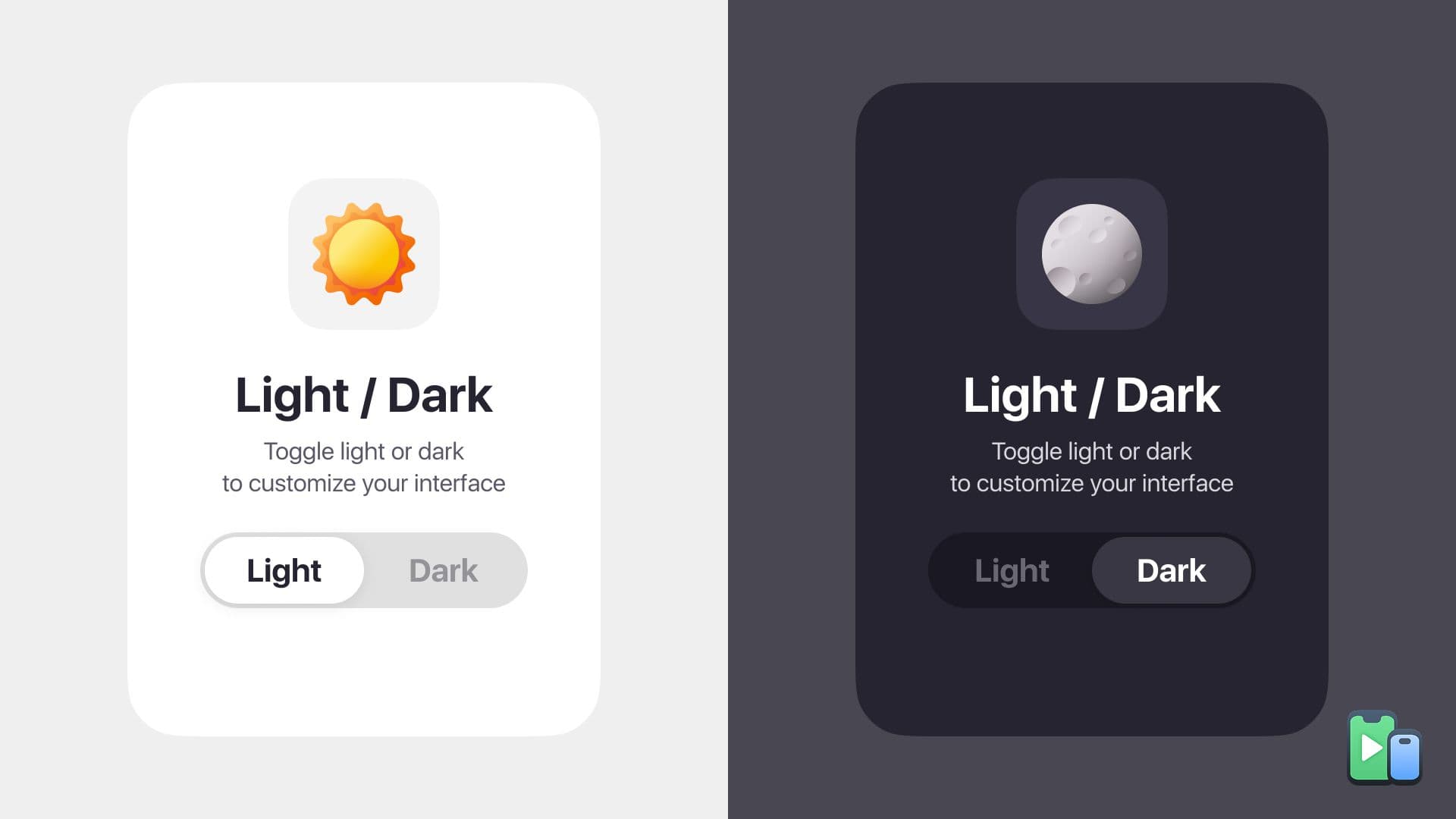
Browser support: prefers-color-scheme is supported in iOS Safari 12.2+, Chrome 76+, Firefox 67+, and Samsung Internet 10+. This covers 95%+ of mobile browsers in 2026.
Color Palette Design for Dark Mode
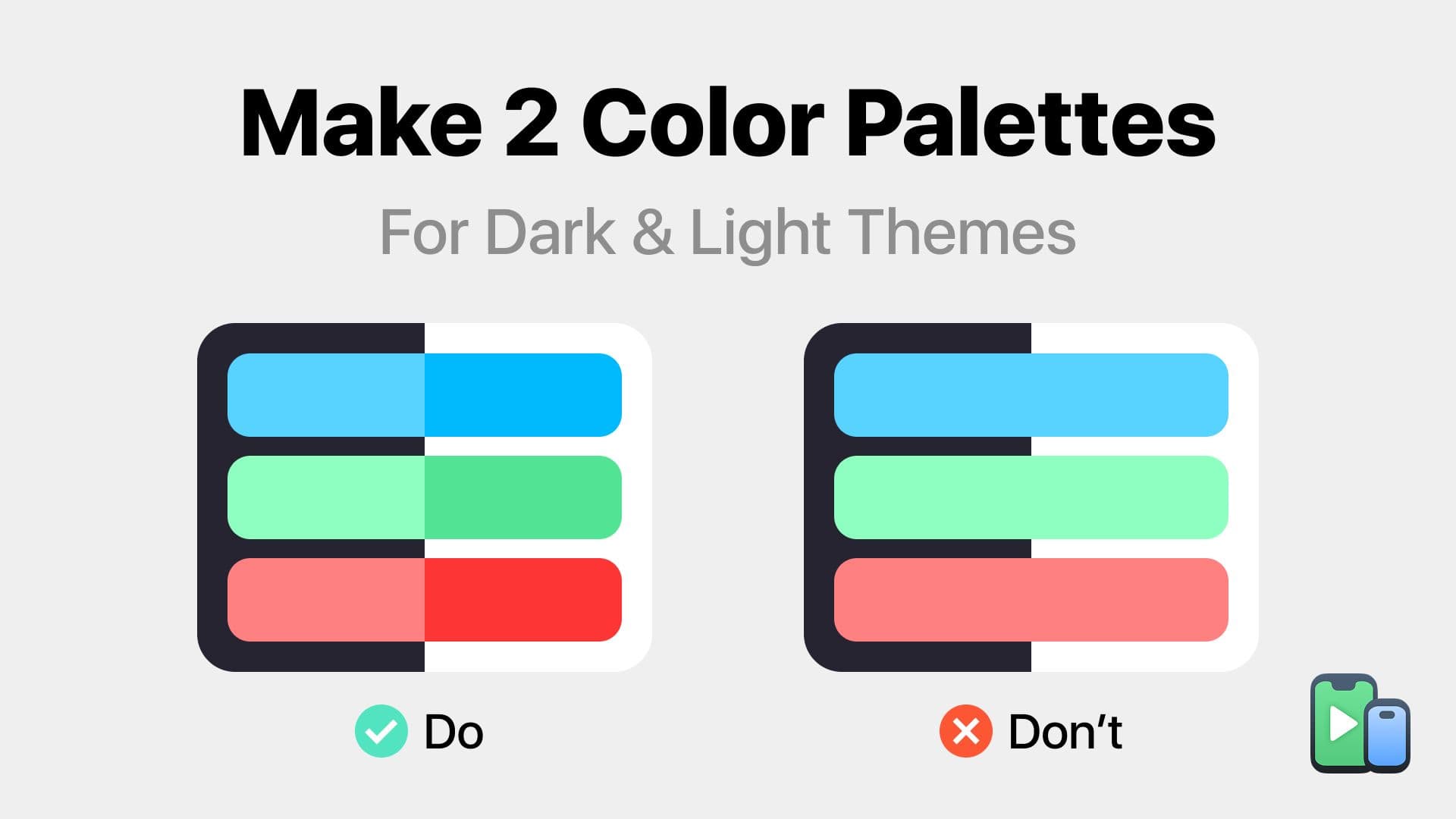
Dark mode isn't about pure black and white. Effective implementations use carefully chosen shades that maintain hierarchy and reduce eye strain.
Avoid Pure Black (#000000)
Pure black creates excessive contrast with white text, causing halation (text appearing to glow). Use dark grays instead:
:root {
      --dark-bg-primary: #121212;    /* Main background */
      --dark-bg-secondary: #1e1e1e;  /* Cards, elevated surfaces */
      --dark-bg-tertiary: #2a2a2a;   /* Inputs, modals */
}
Material Design and iOS guidelines both recommend #121212 or similar dark grays as primary backgrounds.
Text Contrast Ratios
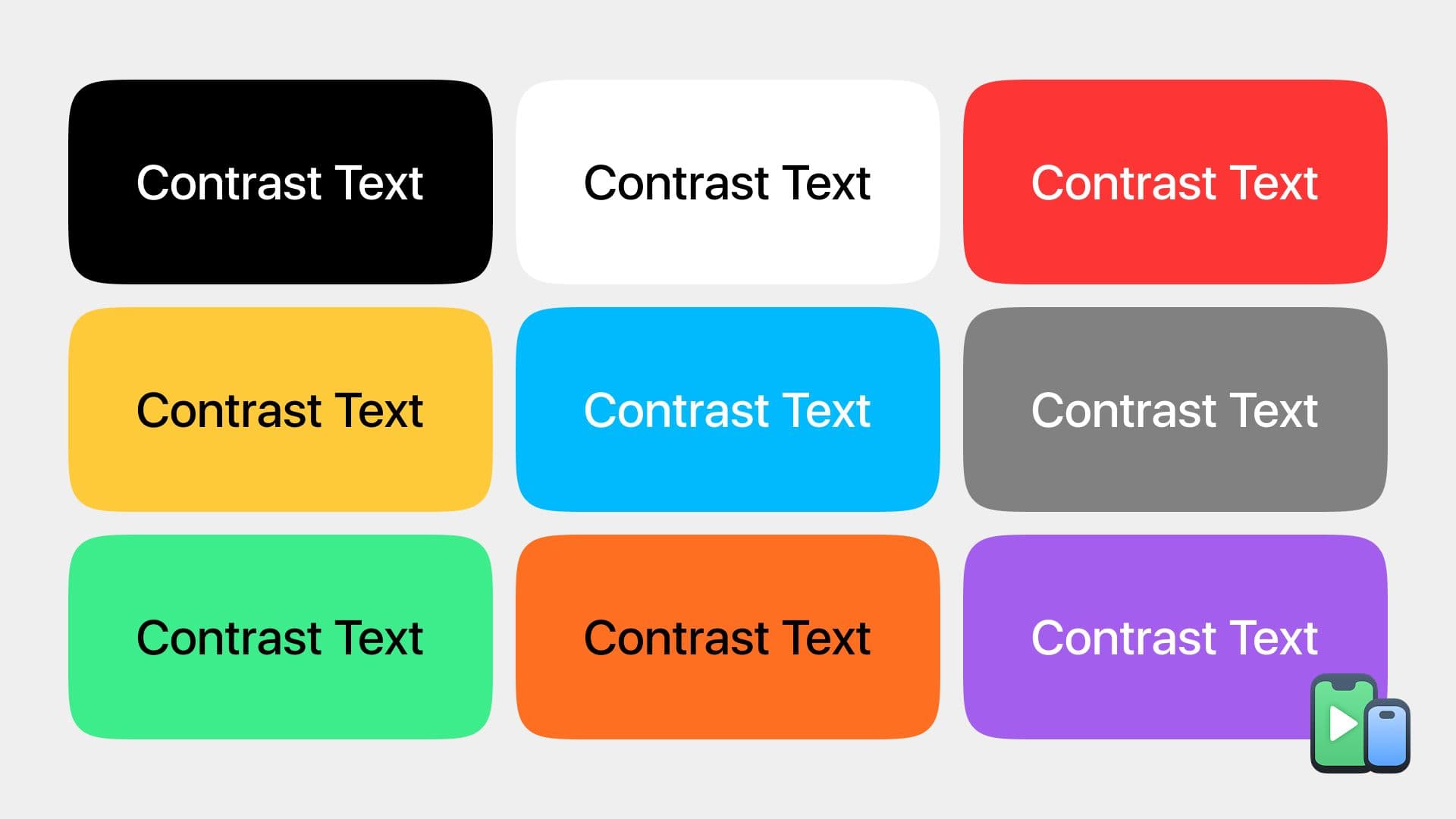
WCAG requires 4.5:1 contrast for normal text and 3:1 for large text. In dark mode, this means:
Don't use pure white text #ffffff on dark backgrounds - it's too harsh.
Use softened whites #e0e0e0 to #f5f5f5 that maintain readability without glare.
@media (prefers-color-scheme: dark) {
    body {
        color: #e0e0e0; /* Primary text */
    }

    .text-secondary {
        color: #a0a0a0; /* Secondary text */
    }

    .text-tertiary {
        color: #707070; /* Disabled/tertiary text */
    }
}
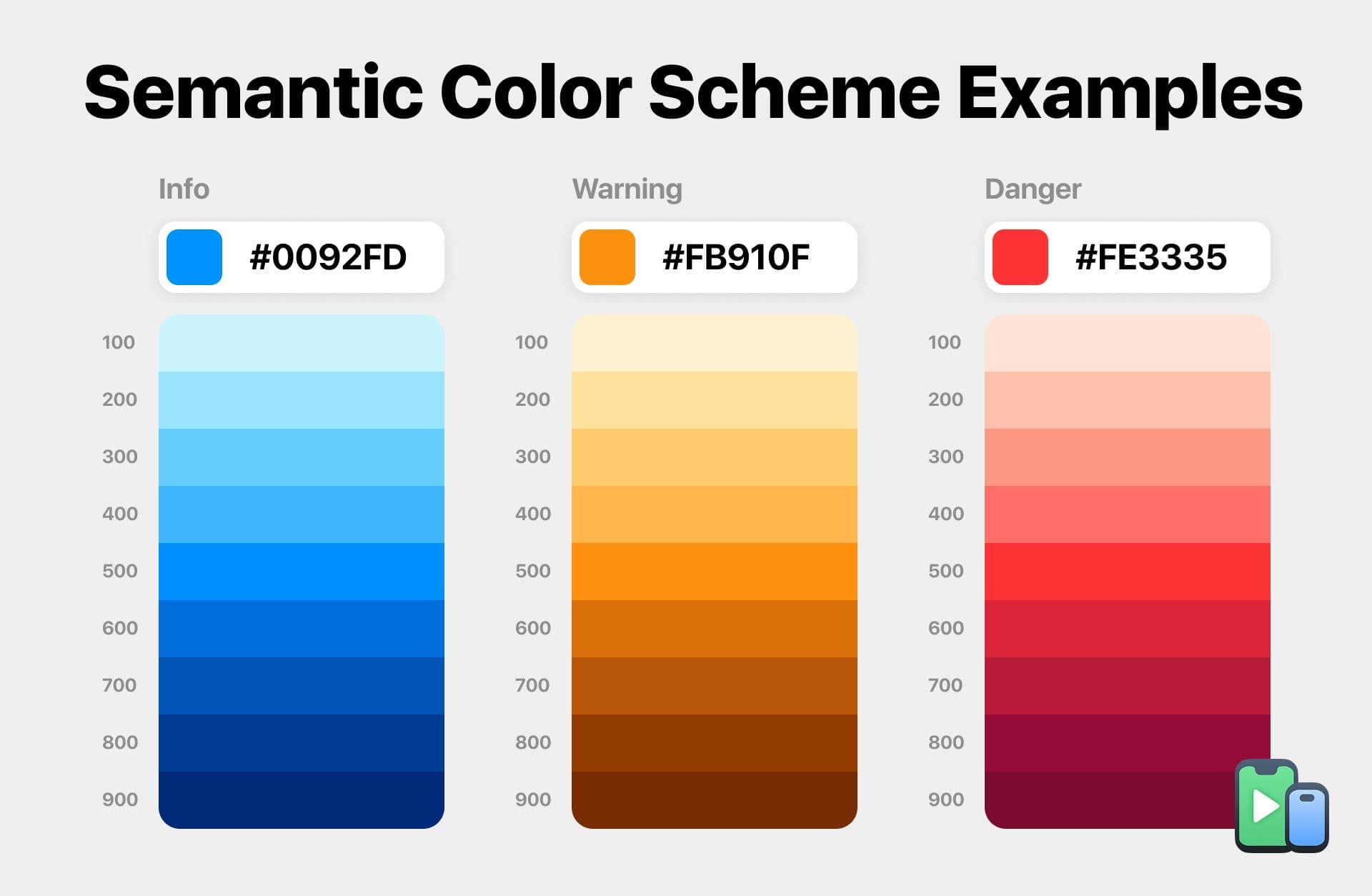
Semantic Color Adaptation
Colors need different saturation levels in dark mode:
:root {
    --color-primary: #2563eb;     /* Light mode blue */
    --color-success: #16a34a;     /* Light mode green */
    --color-danger: #dc2626;      /* Light mode red */
}

@media (prefers-color-scheme: dark) {
    :root {
        --color-primary: #60a5fa;   /* Lighter, less saturated blue */
        --color-success: #4ade80;   /* Lighter green */
        --color-danger: #f87171;    /* Lighter red */
    }
}
Saturated colors that work in light mode often feel overwhelming in dark mode. Reduce saturation and increase lightness for better balance.
Handling Images and Media in Dark Mode
Images and graphics present unique challenges in dark mode. A photo optimized for light backgrounds can look washed out or create jarring contrast in dark mode.
Image Opacity Adjustment
Reduce image brightness in dark mode to prevent them from overpowering the interface:
@media (prefers-color-scheme: dark) {
    img {
        opacity: 0.85;
    }

    img:hover {
        opacity: 1;
    }
}
This subtle reduction integrates images better with dark backgrounds without making them invisible.
SVG Color Inversion
For icons and simple graphics, use CSS filters or provide alternate SVG versions:
@media (prefers-color-scheme: dark) {
    .icon {
        filter: invert(1) hue-rotate(180deg);
    }
}
Better approach-use CSS custom properties in SVGs:
<svg>
    <path fill="var(--icon-color)" />
</svg>:root {
--icon-color: #1a1a1a;
}
@media (prefers-color-scheme: dark) {
:root {
--icon-color: #e5e5e5;
}
}Picture Element for Different Versions
For complex images that need different treatments:
<picture>
    <source srcset="hero-dark.jpg" media="(prefers-color-scheme: dark)">
    <img src="hero-light.jpg" alt="Hero image">
</picture>
This delivers optimized images for each color scheme without JavaScript.
Form Elements and Interactive Components
Forms are where dark mode implementations often break. Input fields, buttons, and interactive elements need special attention on mobile.
Input Styling
Standard form inputs look broken in dark mode without explicit styling:
input, textarea, select {
    background-color: #ffffff;
    color: #1a1a1a;
    border: 1px solid #d1d5db;
}

@media (prefers-color-scheme: dark) {
    input, textarea, select {
        background-color: #2a2a2a;
        color: #e5e5e5;
        border: 1px solid #404040;
    }

    input::placeholder {
        color: #707070;
    }
}
Mobile-specific considerations:
- Ensure touch targets remain 44×44px minimum
- Test placeholder text contrast (often too light in dark mode)
- Verify autofill styling works in both modes
Button Contrast
Buttons need sufficient contrast in both modes:
.button-primary {
    background-color: #2563eb;
    color: #ffffff;
    border: none;
}

@media (prefers-color-scheme: dark) {
    .button-primary {
         background-color: #60a5fa;
         color: #1a1a1a;
    }
}
Notice the text color change - white text on light blue works better in dark mode, while dark text on lighter blue maintains contrast.
Focus States
Focus indicators must be visible in both color schemes:
button:focus {
    outline: 2px solid #2563eb;
    outline-offset: 2px;
}

@media (prefers-color-scheme: dark) {
    button:focus {
        outline-color: #60a5fa;
    }
}
This is critical for accessibility and keyboard navigation on mobile devices.
CSS Custom Properties: The Smart Approach
CSS variables make dark mode implementation maintainable and scalable:
:root {
    --bg-primary: #ffffff;
    --bg-secondary: #f3f4f6;
    --text-primary: #1a1a1a;
    --text-secondary: #4b5563;
    --border-color: #e5e7eb;
    --shadow: 0 1px 3px rgba(0, 0, 0, 0.1);
}

@media (prefers-color-scheme: dark) {
    :root {
        --bg-primary: #121212;
        --bg-secondary: #1e1e1e;
        --text-primary: #e5e5e5;
        --text-secondary: #a0a0a0;
        --border-color: #404040;
        --shadow: 0 1px 3px rgba(0, 0, 0, 0.5);
    }
}

/* Usage throughout stylesheet */

body {
    background-color: var(--bg-primary);
    color: var(--text-primary);
}

.card {
    background-color: var(--bg-secondary);
    border: 1px solid var(--border-color);
    box-shadow: var(--shadow);
}
This approach centralizes color management and makes theme switching trivial.
JavaScript Enhancement (Optional but Powerful)
While CSS-only dark mode works, JavaScript enables user toggles and persistence:
// Check for saved preference or default to system
const theme = localStorage.getItem('theme') || (window.matchMedia('(prefers-color-scheme: dark)').matches ? 'dark' : 'light');

// Apply theme
document.documentElement.setAttribute('data-theme', theme);

// Toggle function
function toggleTheme() {
    const current = document.documentElement.getAttribute('data-theme');
    const next = current === 'dark' ? 'light' : 'dark';

    document.documentElement.setAttribute('data-theme', next);
    localStorage.setItem('theme', next);
}
CSS changes to use data attribute:
:root {
    --bg-primary: #ffffff;
    --text-primary: #1a1a1a;
}

[data-theme="dark"] {
    --bg-primary: #121212;
    --text-primary: #e5e5e5;
}
This gives users manual control while respecting system preferences by default.
Testing Dark Mode Across Devices
Here's where implementation meets reality. Dark mode can look perfect in Chrome DevTools but broken on actual devices.
Why Device Testing Is Critical
Different mobile browsers render dark mode slightly differently:
- Safari on iOS applies system-level tinting to certain elements
- Chrome on Android handles color profiles differently
- Samsung Internet has unique dark mode behaviors
- Various Android skins (OneUI, MIUI) affect rendering
Common device-specific issues:
- Status bar color mismatches
- Safe area backgrounds appearing wrong
- Form elements reverting to system defaults
- Shadows becoming invisible or too harsh
Rapid Testing Workflow
During development, you need to see dark mode across multiple devices quickly. Toggle dark mode on your system, but also preview how your site looks on different phones with varying dark mode implementations.
Phone Simulator makes this process instant - switch between iPhone 17 in dark mode, Galaxy S25 with OneUI dark theme, and Pixel 9 dark mode with one click. You'll immediately spot rendering inconsistencies that only appear on specific devices, like Samsung's aggressive contrast adjustments or iOS Safari's semi-transparent UI elements affecting your backgrounds.
Testing dark mode manually on physical devices is time-consuming. You need to:
- Enable dark mode on the device
- Open your site
- Check for issues
- Disable dark mode
- Repeat on next device
With a mobile emulator, you skip all that overhead and test 30+ device/theme combinations in the time it would take to check two physical devices.
Testing Checklist
For each device profile, verify:
Visual consistency:
- Background colors match across all sections
- Text remains readable (4.5:1 contrast minimum)
- Images don't overpower dark backgrounds
- Borders and dividers remain visible
Interactive elements:
- Buttons have sufficient contrast
- Form inputs are clearly defined
- Focus states are visible
- Hover effects work on touch devices (or are disabled)
Edge cases:
- Loading states and skeletons work in dark mode
- Error messages are readable
- Modal overlays have proper backgrounds
- Toast notifications/alerts are visible
Platform-Specific Quirks
iOS Safari:
- Respects system dark mode automatically
- Status bar color needs meta tag:
<meta name="theme-color" media="(prefers-color-scheme: dark)" content="#121212"> - Semi-transparent navigation bar can affect background color perception
Android Chrome:
- Honors system dark mode
- Different Android skins apply additional color adjustments
- Samsung Internet has aggressive contrast enhancement that can break subtle color schemes
Testing tip: Preview your site on both flagship and budget devices. Low-end Android phones often have lower-quality screens where dark mode contrast issues become more apparent.
If you're curious about other platform-specific rendering differences beyond dark mode, our article on iOS vs Android rendering covers the technical details of how these platforms handle web content differently.
Common Dark Mode Mistakes to Avoid
Mistake 1: Insufficient Contrast Testing
Using dark gray text on slightly lighter dark gray backgrounds fails accessibility standards and strains eyes.
Solution: Use contrast checking tools (WebAIM, Stark) to verify all text meets WCAG AA (4.5:1) or AAA (7:1) standards.
Mistake 2: Forgetting About Shadows
Shadows that work in light mode disappear or look muddy in dark mode.
/* Light mode shadow */
.card {
    box-shadow: 0 2px 8px rgba(0, 0, 0, 0.1);
}

/* Dark mode needs stronger shadows */
@media (prefers-color-scheme: dark) {
    .card {
        box-shadow: 0 2px 8px rgba(0, 0, 0, 0.5);
    }
}
Mistake 3: Hardcoded Colors in JavaScript
Any colors set via JavaScript won't respect dark mode:
// Bad
element.style.backgroundColor = '#ffffff';

// Good
element.style.backgroundColor = 'var(--bg-primary)';
Mistake 4: Ignoring Third-Party Content
Embedded widgets, ads, and iframes don't automatically adapt to your dark mode:
@media (prefers-color-scheme: dark) {
    iframe {
        border: 1px solid var(--border-color);
        background-color: var(--bg-secondary);
    }
}
Mistake 5: Not Testing Transitions
Switching between light and dark mode can reveal jarring transitions:
body, .card, button {
    transition: background-color 0.3s ease,
        color 0.3s ease,
        border-color 0.3s ease;
}
Smooth transitions make mode switching feel polished rather than abrupt.
Performance Considerations for Mobile
Dark mode shouldn't impact performance, but poor implementations can:
Avoid Multiple Color Scheme Media Queries
Don't scatter dark mode styles throughout your CSS:
/* Bad - scattered and hard to maintain */
.header { color: black; }
@media (prefers-color-scheme: dark) { .header { color: white; } }

.content { background: white; }
@media (prefers-color-scheme: dark) { .content { background: #121212; } }
Better approach: Centralize with CSS variables as shown earlier.
Lazy Load Dark Mode Assets
If you serve different images for dark mode, lazy load them:
<img src="hero-light.jpg" data-dark-src="hero-dark.jpg" loading="lazy" alt="Hero">if (window.matchMedia('(prefers-color-scheme: dark)').matches) {
document.querySelectorAll('[data-dark-src]').forEach(img => {
img.src = img.dataset.darkSrc;
});
}Consider OLED Power Savings
True black pixels #000000 consume zero power on OLED screens. While #121212 looks better, for elements that can be pure black (like navigation bars), consider using #000000 in dark mode for battery optimization.
Accessibility Beyond Color
Dark mode helps many users but isn't a complete accessibility solution:
Maintain Semantic HTML
Screen readers don't care about color scheme. Ensure:
- Proper heading hierarchy (h1, h2, h3)
- ARIA labels where needed
- Alt text for images works in both modes
- Focus order remains logical
Respect User Preferences
Some users need high contrast mode, reduced motion, or other preferences:
@media (prefers-contrast: high) {
    :root {
        --text-primary: #000000;
        --bg-primary: #ffffff;
    }
}

@media (prefers-reduced-motion: reduce) {
    * {
        animation-duration: 0.01ms !important;
        transition-duration: 0.01ms !important;
    }
}
Combine these with dark mode for comprehensive accessibility.
Advanced: Automatic Theme Switching
Some sites automatically switch between light and dark mode based on time of day:
function autoTheme() {
    const hour = new Date().getHours();
    const isDaytime = hour >= 6 && hour < 18;

    document.documentElement.setAttribute('data-theme', isDaytime ? 'light' : 'dark');
}

// Run on load and update hourly
autoTheme();
setInterval(autoTheme, 3600000);
This is controversial-some users dislike automatic switching. Provide a manual toggle if implementing this.
Future-Proofing Your Dark Mode Implementation
Web standards evolve. Here's what to watch:
CSS Color Module Level 5: Will add light-dark() function for easier color switching:
color: light-dark(#1a1a1a, #e5e5e5);Currently experimental but likely to gain support in 2026-2027.
Better system integration: Expect tighter integration between browser dark mode and OS-level color management.
Per-element dark mode: Future specs may allow different elements to opt into different color schemes on the same page.
Real-World Testing Strategy
Here's a practical testing workflow for mobile dark mode:
During development:
- Use browser DevTools with dark mode toggle
- Preview on your primary test device (iPhone or Android)
- Check contrast ratios in DevTools Accessibility panel
Before deployment:
- Test on 5-7 device profiles (iPhone 15, Galaxy S24, Pixel 8, budget Android, iPad)
- Verify in both system dark mode and light mode
- Check all interactive states (hover, focus, active, disabled)
- Test form submission flows completely
Post-deployment:
- Monitor error tracking for dark-mode-specific JavaScript errors
- Review analytics for unusual bounce rates during evening hours
- Collect user feedback on readability
For a comprehensive mobile testing workflow beyond just dark mode, our guide on testing websites across 30+ devices covers strategies for catching device-specific issues efficiently.
Conclusion
Dark mode is no longer a nice-to-have feature - it's a baseline expectation for mobile users in 2026. Over 80% of mobile traffic comes from users with dark mode enabled, and sites that don't support it create immediate friction.
Implementing dark mode correctly requires more than inverting colors. You need thoughtful contrast ratios, semantic color systems, accessible text, and - critically - testing across real devices where platform-specific quirks appear.
Start with CSS custom properties for maintainability, use prefers-color-scheme for system integration, and test relentlessly across device profiles. Your mobile users will notice the difference immediately.
Ready to streamline your dark mode testing workflow? Phone Simulator for Chrome lets you instantly preview your site in dark mode across iPhone, Android, and tablet devices - from flagship models to budget phones. See exactly how your dark theme renders on different screens and catch contrast issues before your users do.
Frequently Asked Questions
Why is dark mode important for mobile websites in 2026?
Dark mode is critical for mobile UX because most users browse in low-light environments and use OLED screens. Proper dark mode improves readability, reduces eye strain, and can extend battery life on modern smartphones
What is the best way to implement dark mode on mobile websites?
The best approach is using CSS custom properties combined with the prefers-color-scheme media query. This respects system settings on iOS and Android while keeping the codebase maintainable and scalable.
Should dark mode be implemented without JavaScript?
Yes, CSS-only dark mode works perfectly for most mobile websites and automatically follows system preferences. JavaScript is optional and mainly used for manual toggles and saving user preferences.
What are the most common dark mode mistakes on mobile?
Common mistakes include insufficient contrast, broken form styling, invisible shadows, and not testing on real devices. These issues often appear only on specific browsers or phone models.
How can I test dark mode across different mobile devices efficiently?
Using a mobile emulator allows you to preview dark mode across multiple iOS and Android devices instantly. This helps catch device-specific rendering issues without testing on physical phones.
Why does dark mode look different on iOS and Android?
Mobile browsers apply platform-specific rendering, system tinting, and contrast adjustments. iOS Safari, Android Chrome, and Samsung Internet each handle dark mode slightly differently.
Is dark mode accessibility-friendly by default?
Not automatically. Dark mode must still meet WCAG contrast requirements, preserve focus states, and maintain semantic HTML to remain accessible for all users.
Install Phone Simulator Today
Join thousands of developers and designers who test their sites on real devices for free.
- Free
- 30,000+ users
Read More About Mobile Testing & UX

How to Run an Android Emulator in Chrome
A lightweight Android emulator in Chrome previews your site on real Android device sizes — no Android Studio needed. Here's how to run one and what to check.
Read more
How to View Mobile Version of Website on Chrome
See how to view the mobile version of any website directly in Chrome — using built-in DevTools and a free device-simulator extension that shows a realistic phone frame.
Read more

Why Your Website Should Load in Under 2 Seconds on Mobile - Backed by 2025–2026 Data
This guide explains why 2 seconds became the standard, what current data tells us about mobile performance, and how to hit that target consistently across devices and networks.
Read more