

CSS Grid vs Flexbox for Mobile: When to Use Each
Mobile layouts demand precision. Every pixel counts, screen space is limited, and users expect interfaces that adapt flawlessly to different device sizes. CSS Grid and Flexbox both solve layout challenges, but they work fundamentally differently - and choosing the wrong one creates problems.
📋 Table of Contents
- Understanding the Core Difference
- When Flexbox Wins on Mobile
- When CSS Grid Wins on Mobile
- Combining Grid and Flexbox: The Real-World Approach
- Performance Considerations for Mobile
- Testing Layouts Across Mobile Devices
- Common Mobile Layout Mistakes
- Decision Framework: Grid or Flexbox?
- Browser Support in 2026
- Real-World Mobile Layout Patterns
- Conclusion
Flexbox excels at one-dimensional layouts. Grid dominates two-dimensional structures. But on mobile, where screens are narrow and content flows vertically, the distinction becomes nuanced. This guide explains when to use each, how to combine them effectively, and what actually works on real mobile devices in 2026.
Understanding the Core Difference
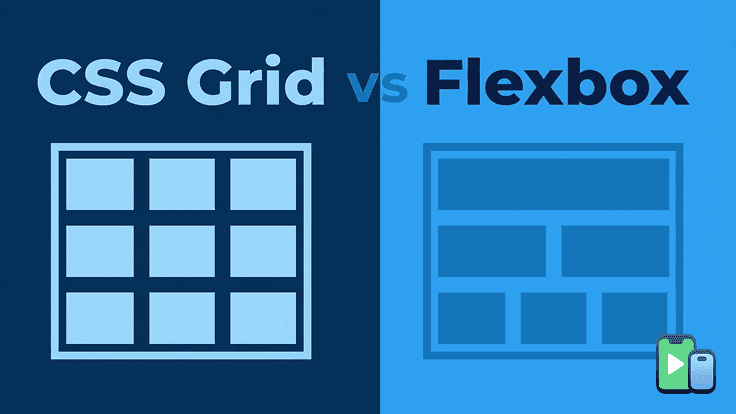
Flexbox arranges items along a single axis - either horizontal or vertical. It's content-first: you define items and Flexbox distributes space around them. Perfect for navigation bars, card rows, or any layout where items flow in one direction.
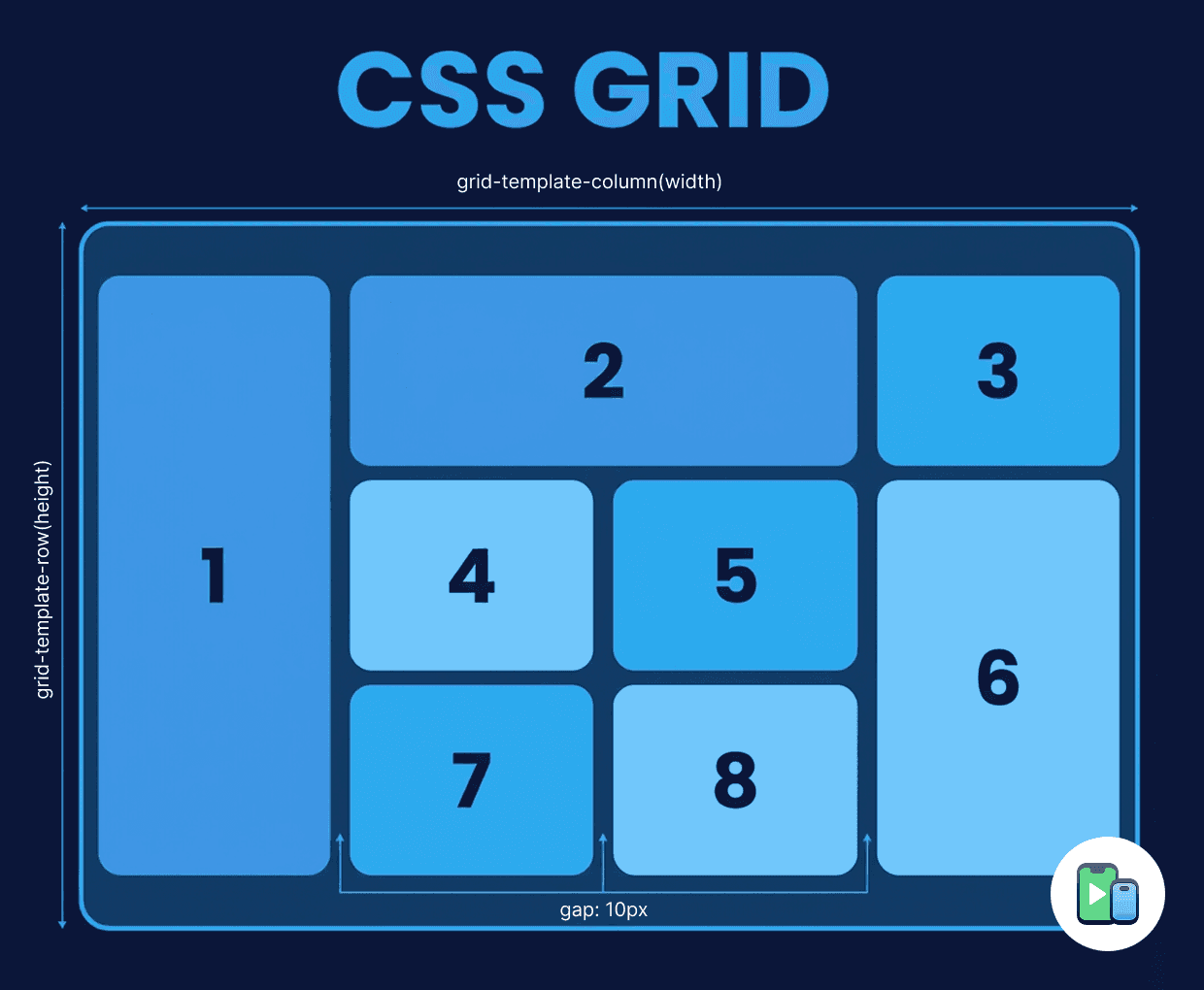
CSS Grid creates two-dimensional layouts with rows and columns simultaneously. It's container-first: you define the grid structure and place items into it. Ideal for complex page layouts, dashboards, or any interface with both horizontal and vertical organization.
Simple rule: If your layout flows in one direction, use Flexbox. If you need precise control over rows AND columns, use Grid.
When Flexbox Wins on Mobile
1. Navigation Bars and Menus
Navigation elements typically flow horizontally or stack vertically - perfect for Flexbox.
.nav-bar {
    display: flex;
    justify-content: space-between;
    align-items: center;
    padding: 12px;
}

.nav-item {
    flex: 0 0 auto;
}
Bottom tab bars, header menus, and toolbar layouts work naturally with Flexbox because they're inherently one-dimensional.
2. Card Lists and Feeds
Content feeds where items stack vertically or flow horizontally use Flexbox efficiently:
.feed {
    display: flex;
    flex-direction: column;
    gap: 16px;
}

.card {
    display: flex;
    align-items: center;
    gap: 12px;
    padding: 16px;
}
Each card's internal layout (image + text) also benefits from Flexbox for horizontal arrangement.
3. Form Layouts
Simple form elements that stack vertically or arrange labels horizontally beside inputs:
.form-row {
    display: flex;
    flex-direction: column;
    gap: 8px;
}

@media (min-width: 768px) {
    .form-row {
        flex-direction: row;
        align-items: center;
    }
}
Flexbox handles the transition from stacked mobile layouts to side-by-side tablet layouts elegantly.
4. Centering Content
The classic centering problem has a trivial Flexbox solution:
.center-container {
    display: flex;
    justify-content: center;
    align-items: center;
    min-height: 100vh;
}
This works reliably across all mobile devices for splash screens, empty states, or loading indicators.
5. Dynamic Content with Unknown Sizes
When you don't know how many items exist or their sizes, Flexbox adapts automatically:
.tag-list {
    display: flex;
    flex-wrap: wrap;
    gap: 8px;
}

.tag {
    flex: 0 0 auto;
    padding: 6px 12px;
}
Tags, badges, or chip lists flow naturally without manual calculations.
When CSS Grid Wins on Mobile
1. Image Galleries and Product Grids
Multiple items arranged in columns use Grid's power:
.product-grid {
    display: grid;
    grid-template-columns: repeat(2, 1fr);
    gap: 16px;
}

@media (min-width: 768px) {
    .product-grid {
        grid-template-columns: repeat(3, 1fr);
    }
}
Grid ensures items align perfectly in rows and columns - Flexbox would require complex calculations.
2. Dashboard Layouts
Dashboards with widgets in defined positions need Grid:
.dashboard {
    display: grid;
    grid-template-columns: 1fr;
    gap: 16px;
}

@media (min-width: 768px) {
    .dashboard {
        grid-template-columns: repeat(3, 1fr);
        grid-template-areas:
            "header header header"
            "sidebar main main"
            "sidebar footer footer";
    }
}
Grid's grid-template-areas creates clear, maintainable layouts that adapt across breakpoints.
3. Form Grids with Complex Alignment
Multi-column forms where labels and inputs need precise alignment:
.form-grid {
    display: grid;
    grid-template-columns: auto 1fr;
    gap: 12px 16px;
    align-items: center;
}
This creates perfect two-column alignment (label | input) that Flexbox struggles with.
4. Magazine-Style Layouts
Complex content layouts with items spanning multiple columns or rows:
.magazine-layout {
    display: grid;
    grid-template-columns: repeat(6, 1fr);
    gap: 16px;
}

.feature {
    grid-column: span 6; /* Full width */
}

.article {
    grid-column: span 3; /* Half width */
}

.aside {
    grid-column: span 2; /* Third width */
}
Flexbox can't achieve this level of control without wrapper elements and complex calculations.
5. Equal-Height Cards in Multiple Columns
Grid naturally creates equal-height items across rows:
.card-grid {
    display: grid;
    grid-template-columns: repeat(auto-fit, minmax(280px, 1fr));
    gap: 20px;
}
All cards in a row match height automatically - Flexbox requires workarounds for this.
Combining Grid and Flexbox: The Real-World Approach
Professional mobile layouts rarely use only Grid or only Flexbox. They combine both strategically.
Pattern 1: Grid for page structure, Flexbox for components
/* Page structure - Grid */
.page {
    display: grid;
    grid-template-rows: auto 1fr auto;
    min-height: 100vh;
}

/* Header components - Flexbox */
.header {
    display: flex;
    justify-content: space-between;
    align-items: center;
}

/* Card internals - Flexbox */
.card {
    display: flex;
    flex-direction: column;
    gap: 12px;
}
This gives you Grid's structural power with Flexbox's component flexibility.
Pattern 2: Grid for mobile, Flexbox for larger screens
Sometimes the best mobile solution differs from desktop:
.content {
    display: grid;
    grid-template-columns: 1fr;
    gap: 16px;
}

@media (min-width: 1024px) {
    .content {
        display: flex;
        gap: 24px;
    }

    .main {
        flex: 1;
    }

    .sidebar {
        flex: 0 0 300px;
    }
}
Mobile uses Grid for stacking, desktop switches to Flexbox for sidebar layout.
Performance Considerations for Mobile
Both Grid and Flexbox are fast, but mobile devices have constraints:
Grid performance:
- Slightly slower initial calculation (especially complex grids)
- More efficient for large numbers of items
- Better for static layouts
Flexbox performance:
- Faster for simple layouts
- Can trigger more reflows with dynamic content
- Better for frequently changing layouts
Reality: The difference is negligible for typical mobile interfaces. Choose based on layout needs, not performance myths.
Testing Layouts Across Mobile Devices
Here's where theory meets reality. A layout that looks perfect in Chrome DevTools might break on actual devices with different screen sizes, aspect ratios, and safe areas.
Common device-specific issues:
- iPhone notches affecting fixed positioning
- Android navigation bars changing viewport height
- Foldable phones creating unusual aspect ratios
- Small phones (320px width) breaking grid layouts
- Large phones (430px+ width) leaving awkward gaps
Testing your Grid and Flexbox layouts across actual device profiles catches these issues early. Phone Simulator lets you instantly preview your layout on iPhone 17, Galaxy S24, Pixel 9, and 30+ other devices-seeing exactly how your Grid columns adapt or your Flexbox wrapping behaves on different screen widths without deploying code.
Viewport variations matter more than you'd think. An auto-fit Grid that works perfectly at 375px might create awkward spacing at 390px or 430px. Quick device switching helps you spot and fix these edge cases during development.
For broader context on device-specific rendering differences that affect layout, see our guide on iOS vs Android rendering.
Common Mobile Layout Mistakes
Mistake 1: Using Grid for Simple Stacking
Don't use Grid when Flexbox suffices:
/* Overcomplicated */
.stack {
    display: grid;
    grid-template-columns: 1fr;
    gap: 16px;
}

/* Better */
.stack {
    display: flex;
    flex-direction: column;
    gap: 16px;
}
Mistake 2: Fixed Grid Columns on Small Screens
Avoid fixed column counts that break on small devices:
/* Bad - forces tiny columns */
.grid {
    grid-template-columns: repeat(3, 1fr);
}

/* Good - adapts to screen width */
.grid {
    grid-template-columns: repeat(auto-fit, minmax(150px, 1fr));
}
Mistake 3: Not Using Gap
Don't use margins between Grid/Flexbox items - use gap:
/* Old way - fragile */
.item {
    margin-right: 16px;
}

/* Modern way - reliable */
.container {
    display: flex;
    gap: 16px;
}
Mistake 4: Over-Nesting Containers
Too many nested Flexbox containers create confusion:
/* Too nested */
<div class="flex">
    <div class="flex">
        <div class="flex">
            <div>Content</div>
        </div>
    </div>
</div>

/* Simpler */
<div class="flex">
    <div>Content</div>
</div>
Mistake 5: Ignoring Mobile Breakpoints
Always test both techniques across mobile breakpoints:
/* Base mobile */
.layout {
    display: flex;
    flex-direction: column;
}

/* Larger mobile */
@media (min-width: 480px) {
    .layout {
        display: grid;
        grid-template-columns: 1fr 1fr;
    }
}

/* Tablet */
@media (min-width: 768px) {
    .layout {
        grid-template-columns: repeat(3, 1fr);
    }
}
Decision Framework: Grid or Flexbox?
Ask yourself these questions:
1. Does content flow in one direction?
→ Flexbox
2. Do you need items aligned in both rows AND columns?
→ Grid
3. Is item size content-dependent?
→ Flexbox
4. Do you need precise item placement?
→ Grid
5. Are items wrapping to multiple lines?
→ Flexbox for simple wrapping, Grid for structured wrapping
6. Do you need equal-height columns?
→ Grid (much easier than Flexbox tricks)
Still unsure? Start with Flexbox. It's simpler and handles 70% of mobile layouts. Add Grid when Flexbox becomes awkward.
Browser Support in 2026
Both Grid and Flexbox have universal support:
Flexbox: 99.8% of mobile browsers
CSS Grid: 98.9% of mobile browsers
The tiny gap comes from very old Android devices. For any app built in 2024+, both are completely safe.
Note: Grid's subgrid feature (for nested grids) has 85% mobile support - use with caution or provide fallbacks.Real-World Mobile Layout Patterns
Pattern: Product Listing
.products {
    display: grid;
    grid-template-columns: repeat(auto-fill, minmax(160px, 1fr));
    gap: 16px;
}

.product-card {
    display: flex;
    flex-direction: column;
    gap: 8px;
}
Grid creates the layout, Flexbox structures each card.
Pattern: Settings Screen
.settings {
    display: flex;
    flex-direction: column;
    gap: 20px;
}

.setting-row {
    display: flex;
    justify-content: space-between;
    align-items: center;
}
Pure Flexbox-settings flow vertically, each row spreads horizontally.
Pattern: Dashboard
.dashboard {
    display: grid;
    grid-template-columns: 1fr;
    gap: 16px;
}

.widget {
    display: flex;
    flex-direction: column;
}
Grid for widget placement, Flexbox for widget internals.
Conclusion
Flexbox and Grid aren't competitors - they're complementary tools. Flexbox handles one-dimensional layouts and content-driven sizing. Grid manages two-dimensional structures and precise placement.
For mobile, start with Flexbox for most components. Reach for Grid when you need multi-column layouts, dashboards, or complex positioning. Combine them strategically: Grid for page structure, Flexbox for component internals.
The best mobile developers don't debate "Grid vs Flexbox." They use whichever makes the code simpler and the layout more reliable - often both in the same project.
Ready to see how your Grid and Flexbox layouts adapt across different mobile screens? Phone Simulator - Mobile Emulator tool for Chrome provides instant preview across 30+ device profiles, helping you perfect responsive layouts before deployment.
Frequently Asked Questions
What is the main difference between CSS Grid and Flexbox on mobile?
CSS Flexbox is designed for one-dimensional layouts (row or column), while CSS Grid handles two-dimensional layouts with rows and columns. On mobile, Flexbox fits most components, while Grid is better for structured layouts like galleries or dashboards.
Should I use CSS Grid or Flexbox for mobile layouts?
Use Flexbox when content flows in one direction and adapts to its size. Use CSS Grid when you need precise control over columns, rows, or equal-height cards on mobile screens.
Is CSS Grid good for mobile devices in 2026?
Yes, CSS Grid has near-universal mobile browser support in 2026 and works reliably on modern devices. It’s safe to use for any project targeting current mobile browsers.
Can CSS Grid and Flexbox be used together?
Yes, combining Grid and Flexbox is a best practice for mobile layouts. Grid is typically used for page structure, while Flexbox handles alignment inside components.
Is CSS Grid slower than Flexbox on mobile?
In real mobile interfaces, performance differences are negligible. Layout choice should be based on structure and maintainability, not performance concerns.
How do I choose between Grid and Flexbox for responsive design?
If the layout is content-driven and linear, choose Flexbox. If it requires structured alignment across rows and columns, CSS Grid is the better option.
Install Phone Simulator Today
Join thousands of developers and designers who test their sites on real devices for free.
- Free
- 30,000+ users
Read More About Mobile Testing & UX

How to Run an Android Emulator in Chrome
A lightweight Android emulator in Chrome previews your site on real Android device sizes — no Android Studio needed. Here's how to run one and what to check.
Read more
How to View Mobile Version of Website on Chrome
See how to view the mobile version of any website directly in Chrome — using built-in DevTools and a free device-simulator extension that shows a realistic phone frame.
Read more

Why Your Website Should Load in Under 2 Seconds on Mobile - Backed by 2025–2026 Data
This guide explains why 2 seconds became the standard, what current data tells us about mobile performance, and how to hit that target consistently across devices and networks.
Read more